ArcGIS Desktop

  • ArcGIS Pro
  • ArcMap

  • My Profile
  • Ayuda
  • Sign Out
ArcGIS Desktop

ArcGIS Online

La plataforma de representación cartográfica para tu organización

ArcGIS Desktop

Un completo SIG profesional

ArcGIS Enterprise

SIG en tu empresa

ArcGIS Developers

Herramientas para crear aplicaciones basadas en la ubicación

ArcGIS Solutions

Plantillas de aplicaciones y mapas gratuitas para tu sector

ArcGIS Marketplace

Obtén aplicaciones y datos para tu organización.

  • Documentación
  • Soporte
Esri
  • Iniciar sesión
user
  • Mi perfil
  • Cerrar sesión

ArcMap

  • Inicio
  • Introducción
  • Cartografiar
  • Analizar
  • Administrar datos
  • Herramientas
  • Extensiones

Copying specification rules for calculated fields

Disponible con licencia de Production Mapping.

If you added and renamed specifications, specification rules need to be added to them. This process may include copying and pasting calculated representation or field rules from existing specifications into the new or updated one.

Specification rules can be copied within a specification or to a different specification. When specification rules are copied, you can edit the rule's Structured Query Language (SQL) statement or Visual Basic Script Edition (VBScript) expression as well as the representation rule being used. For example, if you want to change the script and associate a different symbol with a similar rule, you could modify the script and change the representation rule symbol.

  1. Inicie ArcMap.
  2. Si es necesario, cargue datos en el mapa.
  3. Choose the layer that contains the text strings you want to copy.
  4. Right-click the layer and click Properties.

    The Layer Properties dialog box appears.

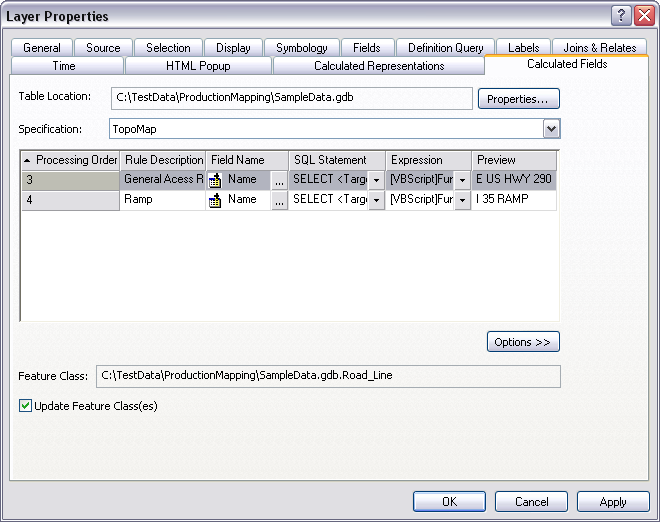
  5. Click the Calculated Fields tab.

    Calculated Fields tab

  6. Choose the specification rules you want to copy in the rules list.

    Sugerencia:

    You can choose multiple rules by clicking and dragging in the list or by holding down the CTRL or SHIFT keys while you choose rules.

  7. Right-click the selection and click Copy.
  8. Right-click the rules list and click Paste.

    The rules are pasted into the rules table.

    Sugerencia:

    You can also right-click in the table to copy and paste rules.

  9. Click OK.

ArcGIS Desktop

  • Inicio
  • Documentación
  • Soporte

ArcGIS

  • ArcGIS Online
  • ArcGIS Desktop
  • ArcGIS Enterprise
  • ArcGIS
  • ArcGIS Developer
  • ArcGIS Solutions
  • ArcGIS Marketplace

Acerca de Esri

  • Quiénes somos
  • Empleo
  • Blog de Esri
  • Conferencia de usuarios
  • Cumbre de desarrolladores
Esri
Díganos su opinión.
Copyright © 2021 Esri. | Privacidad | Legal