Disponible con una licencia Advanced.
Disponible con licencia de Production Mapping.
Geodatabase feature classes can be exported to coverages thematically using a mapping table. This allows you to export line and polygon features to the same coverage in predefined groups, rather than manually creating the coverages based on selectable feature layers. For instance, the mapping table can specify that the roads, railroads, and trails are in a transportation coverage; the coastal water and lakes are in a hydrography coverage; and so forth.
You can also specify the workspace in which the coverages are created as well as a cluster tolerance for creating the coverages.
The coverage mapping table can be a table in any geodatabase; however, it must have the following structure. One row in the table should be created for each feature class in the geodatabase you are exporting. The row must also include the name of the coverage that will be created from that feature class. Feature classes with the same coverage name will be exported to the same coverage.
- Inicie ArcMap.
- Si es necesario, cargue datos en el mapa.
- If you need to create a mapping table to create the coverages, do the following:
- Create a table in the Catalog window or in ArcCatalog.
- Add the following fields to the table.
Field Name Field Type Description OBJECTID
Object Id
A unique number that is automatically generated by the database.
FEATURECLASS
Text
The name of the feature class in the source geodatabase.
COVERAGENAME
Text
The name of the coverage that will be created when the feature class is exported.
- En el menú principal, haga clic en Personalizar > Barras de herramientas > Edición de producción.
- On the Production Editing toolbar, click Production Editing > Geodatabase to Coverage.
The Production Mapping GDBToCoverage: Data Input Mode dialog box appears.
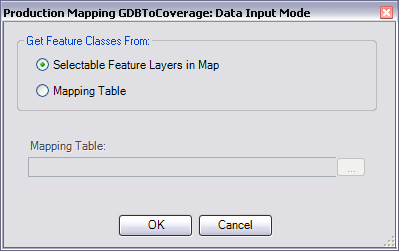
- Choose the Mapping Table option.
- Click the ellipsis (...) next to the Mapping Table text box and browse to the mapping table for the geodatabase you want to export.
- Choose the file and click Select.
The Mapping Table text box is populated with your selection.
- Click OK.
The Please select coverages to create dialog box appears.

- Check the check boxes next to the feature classes and coverages you want to export.
The names of the feature classes associated with the coverage are displayed in the Feature classes in list.
- Click a coverage or feature class name in the list to view its available feature classes.
- Click the ellipsis (...) next to the Workspace text box.
- Browse to the workspace to which you want to export the coverages.
- Haga clic en Aceptar.
- Type a value in the Tolerance text box.
The tolerance is the minimum distance between coordinates before they are considered equal. The value can be higher for data that has less precision and lower for data with high precision.
- Haga clic en Aceptar.
- Review the log file.