ArcGIS Desktop

  • ArcGIS Pro
  • ArcMap

  • My Profile
  • Ayuda
  • Sign Out
ArcGIS Desktop

ArcGIS Online

La plataforma de representación cartográfica para tu organización

ArcGIS Desktop

Un completo SIG profesional

ArcGIS Enterprise

SIG en tu empresa

ArcGIS Developers

Herramientas para crear aplicaciones basadas en la ubicación

ArcGIS Solutions

Plantillas de aplicaciones y mapas gratuitas para tu sector

ArcGIS Marketplace

Obtén aplicaciones y datos para tu organización.

  • Documentación
  • Soporte
Esri
  • Iniciar sesión
user
  • Mi perfil
  • Cerrar sesión

ArcMap

  • Inicio
  • Introducción
  • Cartografiar
  • Analizar
  • Administrar datos
  • Herramientas
  • Extensiones

Creating an ArcGIS for Desktop Advanced coverage using selected layers

Disponible con licencia de Production Mapping.

The Geodatabase To Coverage tool can export feature classes that are listed as selectable layers in the table of contents. This method allows you to manually create thematic coverages that can include polygons and lines. For instance, you could create a coverage from the political boundary area and line feature classes.

You can also specify a tolerance for creating the coverage.

  1. Inicie ArcMap.
  2. Load the layers you want to convert to coverages.

    Nota:

    To change the layers that are selectable, click the List By Selection button Mostrar por selección on the Table of Contents window, then click the Click to toggle selectable button Click to toggle selectable next to the layers you do not want to export to coverages.

  3. En el menú principal, haga clic en Personalizar > Barras de herramientas > Edición de producción.
  4. On the Production Editing toolbar, click Production Editing > Geodatabase to Coverage.

    The Production Mapping GDBToCoverage: Data Input Mode dialog box appears.
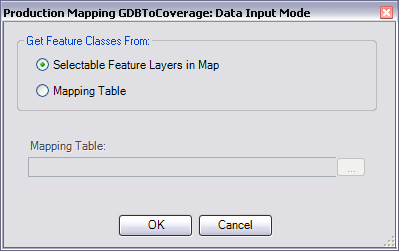
    Production Mapping GDBToCoverage: Data Input Mode dialog box

  5. Choose the Selectable Feature Layers in Map option, if necessary.
  6. Click OK.

    The Please select the output coverage for the selectable layers dialog box appears.

    Please select the output coverage for the selectable layers dialog box

  7. Click the ellipsis (...) next to the Coverage text box.

    The Please enter name of coverage to create dialog box appears.

  8. Navigate to the directory in which you want to create the coverage.
  9. Type a name for the output coverage in the Name text box.
  10. Click Save.
  11. If necessary, type a value in the Tolerance text box.

    The tolerance is the minimum distance between coordinates before they are considered equal. The value can be higher for data that has less precision and lower for data with high precision.

  12. Haga clic en Aceptar.

Temas relacionados

  • Exporting to coverages when you are not an administrator

ArcGIS Desktop

  • Inicio
  • Documentación
  • Soporte

ArcGIS

  • ArcGIS Online
  • ArcGIS Desktop
  • ArcGIS Enterprise
  • ArcGIS
  • ArcGIS Developer
  • ArcGIS Solutions
  • ArcGIS Marketplace

Acerca de Esri

  • Quiénes somos
  • Empleo
  • Blog de Esri
  • Conferencia de usuarios
  • Cumbre de desarrolladores
Esri
Díganos su opinión.
Copyright © 2021 Esri. | Privacidad | Legal