Disponible con licencia de Production Mapping.
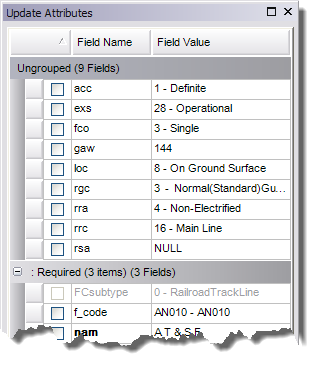
With field configurations, you can choose to create groups for individual feature classes and tables or across different feature classes and tables. Grouping attributes allows you to organize the attribute fields into logical sets when they are displayed on the Create Attributes and Update Attributes windows. This is useful for feature classes with a large number of attributes because you can collapse groups you are not interested in to display only those attributes you want to see. If you want to have different groups set up for each table or subtype, you can set them up in the Field Configuration Manager dialog box. This can be useful when different subtypes have varying numbers of fields and you want to apply different groups to each one so editors know which fields have a higher priority than others.
For example, you may set up standard groups for attributes through the Edit Shared Fields dialog box but also want to create a separate group for the spatial attributes on a feature (length, width, angle of orientation, and so forth). This can also be useful when the feature class does not have subtypes and therefore has fields that would not appear in the Edit Shared Fields dialog box.
Once groups are created, fields that are not included in groups are placed in the Ungrouped group by default.
- Inicie ArcMap.
- En el menú principal, haga clic en Personalizar > Barras de herramientas > Edición de producción.
- Haga clic en el botón Biblioteca de productos
 en la barra de herramientas Edición de producción.
Aparece una vista de árbol de la biblioteca de productos.

- Define the product library workspace.
- Ensure that the data model and data model version have been created for the schema.
- Right-click the data model version you want to create groups for and click Manage Configurations.
The Field Configurations dialog box appears.
- Click Tables to Edit.
The Choose Data Model Version Tables to Edit dialog box appears with a list of feature classes and tables in the data model.
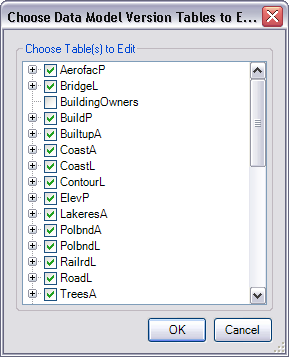
- Check the check boxes next to the feature classes and tables whose configurations you want to edit in the Choose Table(s) to Edit list.
- Click OK.
The Field Configuration dialog box appears with the selected feature classes and tables in the Current Fields Configuration list.
- Expand a feature class, right-click a field to add to a group, point to Groups, then type a group name in the text box.
- Press Enter.
The new group is created and the selected field is added to the group.

- Repeat steps 10 and 11 as needed to create groups for other feature classes or subtypes.
- Haga clic en Aceptar.