ArcGIS Desktop

  • ArcGIS Pro
  • ArcMap

  • My Profile
  • Ayuda
  • Sign Out
ArcGIS Desktop

ArcGIS Online

La plataforma de representación cartográfica para tu organización

ArcGIS Desktop

Un completo SIG profesional

ArcGIS Enterprise

SIG en tu empresa

ArcGIS Developers

Herramientas para crear aplicaciones basadas en la ubicación

ArcGIS Solutions

Plantillas de aplicaciones y mapas gratuitas para tu sector

ArcGIS Marketplace

Obtén aplicaciones y datos para tu organización.

  • Documentación
  • Soporte
Esri
  • Iniciar sesión
user
  • Mi perfil
  • Cerrar sesión

ArcMap

  • Inicio
  • Introducción
  • Cartografiar
  • Analizar
  • Administrar datos
  • Herramientas
  • Extensiones

Enabling use of the current z-value

Disponible con licencia de Production Mapping.

The Update Z values on modify check box controls whether a vertex's z-value is updated to the current z-value when the vertex is modified. When this check box is checked, z-values on any modified vertices are updated to the current z-value at the time the edits are made. In contrast, if the Update Z values on modify check box is unchecked, existing z-values are retained, and the current z-value is ignored when a vertex is modified.

In the example below, if the Update Z values on modify check box is checked and you move vertex 1, the z-value will update from 27.275 to 20.
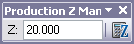
A current z-value specified on the Production Z Management toolbar
Example of a feature updated using the current z-value

If that same edit is performed when the Update Z values on modify check box is not checked, the z-value for vertex 1 remains unchanged at 27.275.

Example of a vertex that retains the original z-value when moved

By default, the Update Z values on modify check box is checked.

  1. Inicie ArcMap.
  2. En el menú principal, haga clic en Personalizar > Barras de herramientas > Edición de producción.
  3. En la barra de herramientas Edición de producción, haga clic en Edición de producción > Propiedades de edición.

    Aparece el cuadro de diálogo Propiedades de producción.

    Panel Edición en el cuadro de diálogo Propiedades de producción
    Sugerencia:

    También puede abrir el cuadro de diálogo Propiedades de producción haciendo clic en Personalizar > Producción > Propiedades de producción.

  4. Check the Update Z values on modify check box in the Z Management area.
  5. Haga clic en Aceptar.

Temas relacionados

  • Configuring the z snapping environment
  • Data editing and z-enabled features

ArcGIS Desktop

  • Inicio
  • Documentación
  • Soporte

ArcGIS

  • ArcGIS Online
  • ArcGIS Desktop
  • ArcGIS Enterprise
  • ArcGIS
  • ArcGIS Developer
  • ArcGIS Solutions
  • ArcGIS Marketplace

Acerca de Esri

  • Quiénes somos
  • Empleo
  • Blog de Esri
  • Conferencia de usuarios
  • Cumbre de desarrolladores
Esri
Díganos su opinión.
Copyright © 2021 Esri. | Privacidad | Legal