ArcGIS Desktop

  • ArcGIS Pro
  • ArcMap

  • My Profile
  • Ayuda
  • Sign Out
ArcGIS Desktop

ArcGIS Online

La plataforma de representación cartográfica para tu organización

ArcGIS Desktop

Un completo SIG profesional

ArcGIS Enterprise

SIG en tu empresa

ArcGIS Developers

Herramientas para crear aplicaciones basadas en la ubicación

ArcGIS Solutions

Plantillas de aplicaciones y mapas gratuitas para tu sector

ArcGIS Marketplace

Obtén aplicaciones y datos para tu organización.

  • Documentación
  • Soporte
Esri
  • Iniciar sesión
user
  • Mi perfil
  • Cerrar sesión

ArcMap

  • Inicio
  • Introducción
  • Cartografiar
  • Analizar
  • Administrar datos
  • Herramientas
  • Extensiones

Filtering DEMs

Disponible con licencia de Production Mapping.

Filtering digital elevation models (DEMs) calculates new z-values for the pixels in the DEM by using an average of the values from the pixels around it. This is important when merging DEMs to smooth the edges where two DEMS come together. The Merge And Filter DEMs tool filters the DEMs that are currently loaded in the map and creates a temporary file that can be used for contour creation.

Learn more about how filter works

Nota:

You must have the ArcGIS Spatial Analyst extension enabled to perform this task. For information on enabling the ArcGIS Spatial Analyst extension, see Enabling the ArcGIS Spatial Analyst extension.

  1. Inicie ArcMap.
  2. Load the DEMs files you want to filter.
  3. En el menú principal, haga clic en Personalizar > Barras de herramientas > Perfil de producción.
  4. Click the Merge And Filter DEMs button Merge And Filter DEMs on the Production Contouring toolbar.

    The Merge and Filter DEMs dialog box appears.
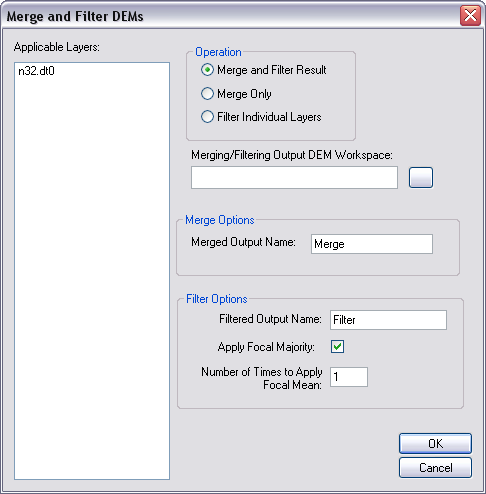
    Merge and Filter DEMs dialog box
  5. Choose Filter Individual Layers in the Operation area.

    Sugerencia:

    You can merge the raster layers by choosing the Merge and Filter Result option in the Operation area.

  6. Click the Open button Open next to the Merging/Filtering Output DEM Workspace field.

    The Choose DEMs Folder dialog box appears.

  7. Navigate to a current raster folder.

    Nota:

    The folder you choose must be a preexisting DEM workspace.

  8. Haga clic en Abrir.
  9. Type a name for the filtered file in the Filtered Output Name text box.
  10. Check the Apply Focal Majority check box.
  11. Type a quantity in the Number of Times to Apply Focal Mean text box.

    The value can be a number between 1 and 5. This represents the number of times the focal mean is applied to the rasters to smooth the appearance when there are two or more rasters.

  12. Haga clic en Aceptar.

Temas relacionados

  • Ensuring DEM consistency
  • Merging DEMs

ArcGIS Desktop

  • Inicio
  • Documentación
  • Soporte

ArcGIS

  • ArcGIS Online
  • ArcGIS Desktop
  • ArcGIS Enterprise
  • ArcGIS
  • ArcGIS Developer
  • ArcGIS Solutions
  • ArcGIS Marketplace

Acerca de Esri

  • Quiénes somos
  • Empleo
  • Blog de Esri
  • Conferencia de usuarios
  • Cumbre de desarrolladores
Esri
Díganos su opinión.
Copyright © 2021 Esri. | Privacidad | Legal