Disponible con licencia de Production Mapping.
The Unique Filter options allows you to filter data so only one occurrence of any repeating value is returned.
- Start ArcMap.
- Load a map document that contains a graphic table element.
- Verify that you are in layout view if necessary.
- Right-click the graphic table element and click Properties.
The Table Properties dialog box appears.
- If necessary, click the Data Source tab.
The Data Source tab appears.
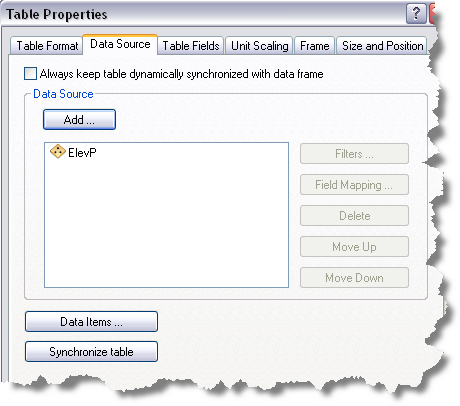
- Click the data source you want to use in the Data Source list on the Data Source tab.
The chosen data source is highlighted, and the Filters button becomes available.
- Click Filters.
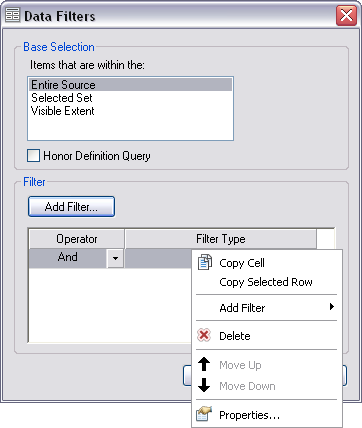
The Data Filters dialog box appears.
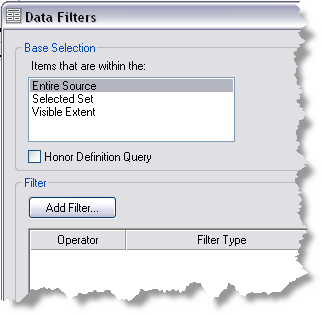
- Click Add Filter on the Data Filters dialog box and click Unique Filter.
The Unique Options dialog box appears.
- Click Add Table Fields.
The Table Fields Selector dialog box appears with a list of data source fields for selection.
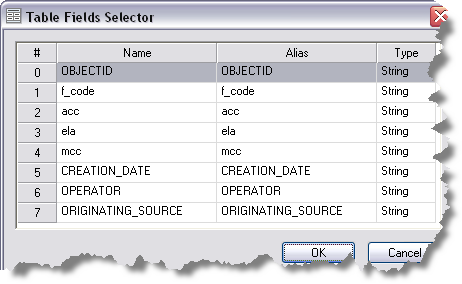
- Click to choose the field you want to add.
- Click OK.
The Unique options dialog box appears.
- Repeat steps 9–11 if necessary until all the fields you want are added.
- To further refine data source filtering, you can copy, delete, or sort rows or copy cells.
- To copy a cell, right-click a cell and click Copy Cell.
- To copy a row, right-click a row and click Copy Selected Row.
- To delete a row, right-click a row and click Delete.
- To sort a row, right-click a row and click Move Up or Move Down.

- Click OK.
The Data Filters dialog box appears with the filter table populated with the filtering options you have defined.
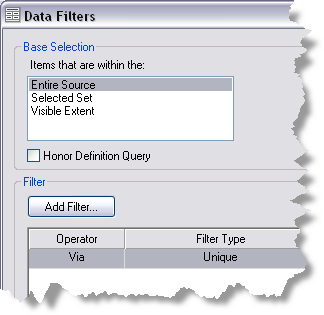
- To further refine data source filtering, you can copy, delete, and sort rows; copy cells; or modify properties.
- To copy a cell, right-click an operator or filter type cell and click Copy Cell.
- To copy a row, right-click an operator or filter type row and click Copy Selected Row.
- To delete a row, right-click a row and click Delete.
- To sort a row, right-click a row and click Move Up or Move Down.
- To modify or redefine the filter configurations you defined previously, right-click a row and click Properties.
- Click OK on the Data Filters dialog box.
The Table Properties dialog box appears.
- Click OK.