Disponible con licencia de Production Mapping.
A Location Filter allows you to define expressions that filter features based on a location layer and filter method. Filter methods specify a spatial relationship.
- Inicie ArcMap.
- Load a map document that contains a graphic table element.
- Verify that you are in layout view if necessary.
- Right-click the graphic table element and click Properties.
The Table Properties dialog box appears.
- If necessary, click the Data Source tab.
The Data Source tab appears.
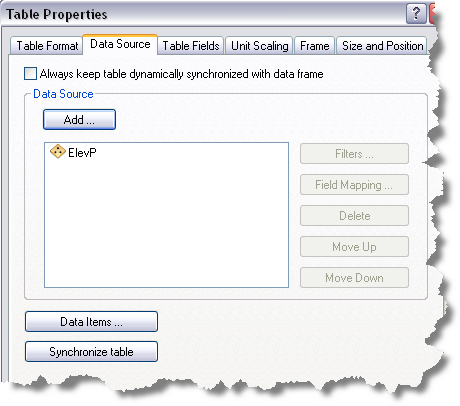
- Click the data source you want to use in the Data Source list on the Data Source tab.
The chosen data source is highlighted, and the Filters button becomes available.
- Click Filters.
The Data Filters dialog box appears.
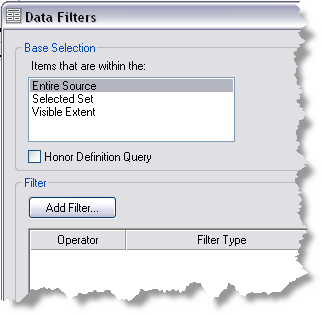
- Click Add Filter on the Data Filters dialog box and click Location Filter.
The Filter By Location dialog box appears.

- Click the Location Layer drop-down arrow and choose the layer you want to use.
- Click the Filter method drop-down arrow and choose from the following filter methods:
- Intersect—Uses features within and intersecting the data frame of the selected location layer currently displayed
- Within a distance—Uses only features within a specified distance
- Completely contains—Uses features completely contained by the data frame of the selected location layer currently displayed
- Completely within—Uses features completely within the data frame of the selected location layer currently displayed
- Have center in—Uses features that have their centers within the data frame of the selected location layer currently displayed
- Share line segment—Uses features that share a line segment
- Touch boundary—Uses features with boundaries that touch each other
- Identical—Uses features with identical properties
- Crossed by the outline—Uses features crossed by an outline
- Contains—Uses features contained by the data frame of the selected location layer currently displayed
- Contained by—Uses features contained by the data frame of the selected location layer currently displayed
- Check the Use selected features check box if you want to use the selected features for filtering, based on their relationship to the location layer.
- Check the Apply buffer check box if you want to apply a buffer.
- Type the distance you want to use in the text box.
- Click the drop-down arrow to choose the units you want to use.
- Click OK.
The Data Filters dialog box appears with the filter table populated with the filtering options you have defined.

- If necessary, click the drop-down for Operator and change the operator type.
- Repeat the steps to add more filters by location.
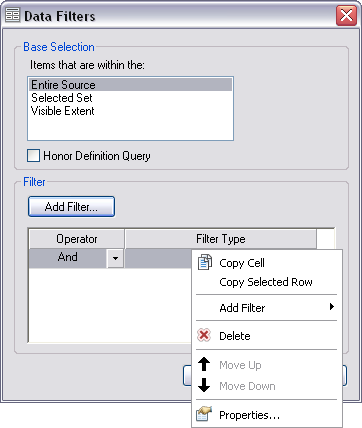
- To further refine data source filtering, you can copy, delete, and sort rows; copy cells; or modify properties.
- To copy a cell, right-click an operator or filter type cell and click Copy Cell.
- To copy a row, right-click an operator or filter type row and click Copy Selected Row.
- To delete a row, right-click a row and click Delete.
- To sort a row, right-click a row and click Move Up or Move Down.
- To modify or redefine the filter configurations you defined previously, right-click a row and click Properties.
- Click OK on the Data Filters dialog box.
The Table Properties dialog box appears.
- Click OK.