ArcGIS Desktop

  • ArcGIS Pro
  • ArcMap

  • My Profile
  • Ayuda
  • Sign Out
ArcGIS Desktop

ArcGIS Online

La plataforma de representación cartográfica para tu organización

ArcGIS Desktop

Un completo SIG profesional

ArcGIS Enterprise

SIG en tu empresa

ArcGIS Developers

Herramientas para crear aplicaciones basadas en la ubicación

ArcGIS Solutions

Plantillas de aplicaciones y mapas gratuitas para tu sector

ArcGIS Marketplace

Obtén aplicaciones y datos para tu organización.

  • Documentación
  • Soporte
Esri
  • Iniciar sesión
user
  • Mi perfil
  • Cerrar sesión

ArcMap

  • Inicio
  • Introducción
  • Cartografiar
  • Analizar
  • Administrar datos
  • Herramientas
  • Extensiones

Getting a local copy of a file

Disponible con licencia de Production Mapping.

There may be times when you want to view or edit a file outside the product library. Getting a local copy allows you to have a copy of the file on a local machine without having an exclusive lock to allow others to make changes to the file. However, any change you make to a local copy of a file is not tracked in the product library.

  1. Inicie ArcMap.
  2. If necessary, open the Product Library window by clicking Customize > Production > Product Library on the main menu.

    A tree view of the product library appears.

    Product Library tree view
  3. Click the Manage Files button Manage Files on the Product Library window.

    The file manager appears.

    Default view of the file manager
  4. Navigate to the file.

    Sugerencia:

    You can also search for the file if you don't know where it is located.

  5. Right-click the file and click Get Local Copy.

    The Get Local Copy Product dialog box appears.
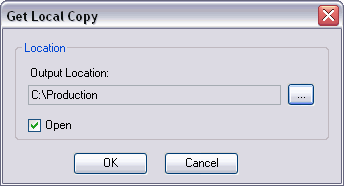
    Get Local Copy dialog box for a file
  6. Click the ellipsis (...) next to the Output Location field.

    The Browse For Folder dialog box appears.

  7. Navigate to the directory where you want to save the local copy.
  8. Click OK.

    The Get Local Copy Product dialog box appears with the path you defined.

  9. If you want to open the file, check the Open check box.
  10. Haga clic en Aceptar.

ArcGIS Desktop

  • Inicio
  • Documentación
  • Soporte

ArcGIS

  • ArcGIS Online
  • ArcGIS Desktop
  • ArcGIS Enterprise
  • ArcGIS
  • ArcGIS Developer
  • ArcGIS Solutions
  • ArcGIS Marketplace

Acerca de Esri

  • Quiénes somos
  • Empleo
  • Blog de Esri
  • Conferencia de usuarios
  • Cumbre de desarrolladores
Esri
Díganos su opinión.
Copyright © 2021 Esri. | Privacidad | Legal