ArcGIS Desktop

  • ArcGIS Pro
  • ArcMap

  • My Profile
  • Ayuda
  • Sign Out
ArcGIS Desktop

ArcGIS Online

La plataforma de representación cartográfica para tu organización

ArcGIS Desktop

Un completo SIG profesional

ArcGIS Enterprise

SIG en tu empresa

ArcGIS Developers

Herramientas para crear aplicaciones basadas en la ubicación

ArcGIS Solutions

Plantillas de aplicaciones y mapas gratuitas para tu sector

ArcGIS Marketplace

Obtén aplicaciones y datos para tu organización.

  • Documentación
  • Soporte
Esri
  • Iniciar sesión
user
  • Mi perfil
  • Cerrar sesión

ArcMap

  • Inicio
  • Introducción
  • Cartografiar
  • Analizar
  • Administrar datos
  • Herramientas
  • Extensiones

Reshaping representations

Disponible con licencia de Production Mapping.

You can use the Reshape Representation tool to edit representation geometry. Reshaping a selected polygon or polyline results in a shape override. An override is an exception to a representation rule for an individual feature.

Representations can only be reshaped if the Store change to geometry as representation overrides option is enabled on the Representation Properties dialog box. If the Change geometry of the supporting feature option is enabled, you can only reshape the representation with editing tools because the underlying geometry of the feature is modified along with the representation.
Nota:

The geometry of free representations cannot be reshaped using the Reshape Representation tool.

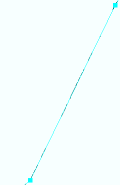
A polyline representation
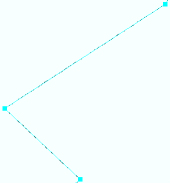
This representation will be reshaped by removing two edges and the vertex between them.
Representation during reshape
The representation is reshaped by digitizing a line between two vertices.
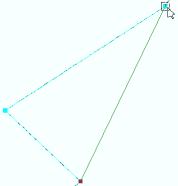
Representation after reshape
The reshape operation removes the vertex and two edges.
  1. Inicie ArcMap.
  2. Si es necesario, cargue datos en el mapa.
  3. En el menú principal, haga clic en Personalizar > Barras de herramientas > Edición de cartografía de producción.
  4. If necessary, start editing.
  5. Verify that you have representations in your target feature class.
  6. Select a feature to select the representation you want to reshape.

    Nota:

    You can only reshape one representation at a time.

  7. Click the Reshape Representation button Reshape Representation on the Production Cartography Editing toolbar.
  8. Click to draw a sketch that represents the new representation shape of the selected feature.

    Nota:

    The sketch must cross the existing feature's shape two times.

  9. Double-click the end node to finish the sketch.

    The representation is reshaped.

ArcGIS Desktop

  • Inicio
  • Documentación
  • Soporte

ArcGIS

  • ArcGIS Online
  • ArcGIS Desktop
  • ArcGIS Enterprise
  • ArcGIS
  • ArcGIS Developer
  • ArcGIS Solutions
  • ArcGIS Marketplace

Acerca de Esri

  • Quiénes somos
  • Empleo
  • Blog de Esri
  • Conferencia de usuarios
  • Cumbre de desarrolladores
Esri
Díganos su opinión.
Copyright © 2021 Esri. | Privacidad | Legal