ArcGIS Desktop

  • ArcGIS Pro
  • ArcMap

  • My Profile
  • Aide
  • Sign Out
ArcGIS Desktop

ArcGIS Online

La plateforme cartographique de votre organisation

ArcGIS Desktop

Un SIG professionnel complet

ArcGIS Enterprise

SIG dans votre entreprise

ArcGIS for Developers

Outils de création d'applications de localisation

ArcGIS Solutions

Modèles d'applications et de cartes gratuits pour votre secteur d'activité

ArcGIS Marketplace

Téléchargez des applications et des données pour votre organisation.

  • Documentation
  • Support
Esri
  • Se connecter
user
  • Mon profil
  • Déconnexion

Help

  • Accueil
  • Commencer
  • Carte
  • Analyser
  • Gérer les données
  • Outils
  • Plus...

Customizing the field names

Disponible avec une licence Data Reviewer.

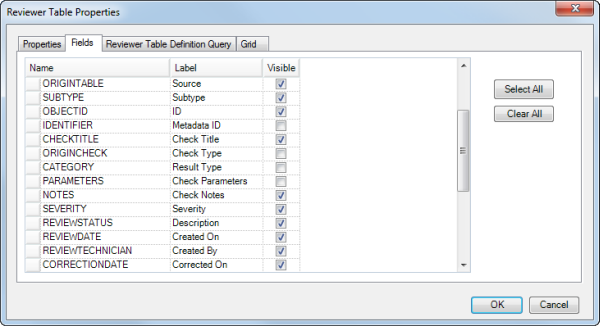
The Reviewer table has several fields that provide information about each record. This includes the life cycle phase of a record, its status, the source, check title, check notes, and review, correction, and verification status information. The fields have names that are displayed by default, but you can customize them to make them more meaningful to people in your organization. For example, suppose you want to make the label for the REVIEWSTATUS field easier to understand. You could change it to something like Description or Review Description.

Once the field labels are changed, the new names are applied to all the sessions in the Reviewer workspace.

  1. Start ArcMap.
  2. On the main menu, click Customize > Toolbars > Data Reviewer.
  3. Start a Reviewer session in one of the following:
    • A file, personal, or SQL Server Express geodatabase
    • An enterprise geodatabase
    • An existing Reviewer workspace
  4. Click the Reviewer Table button Reviewer Table on the Data Reviewer toolbar.
  5. Click the Reviewer Table Properties button Reviewer Table Properties on the Reviewer Table window.

    The Reviewer Table Properties dialog box appears.
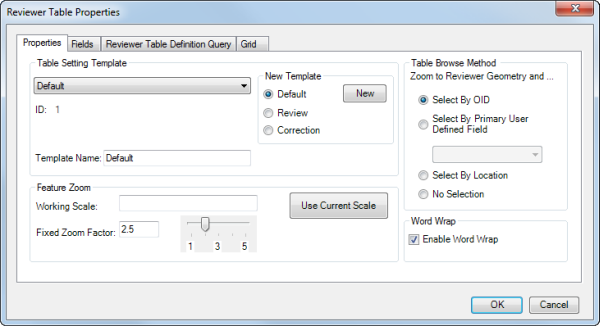
    Properties tab

  6. Click the Fields tab.
    Fields tab
  7. Click the Label cell next to the field name you want to change.
  8. Type a new name for the field in the Label cell.
  9. Click another cell in the table to apply the change.
  10. Repeat steps 7 through 9 for the field labels you want to change.
  11. Click OK when you are finished.

Rubriques connexes

  • Fields in the Reviewer table
  • Toggling Reviewer table column visibility

ArcGIS Desktop

  • Accueil
  • Documentation
  • Support

ArcGIS Platform

  • ArcGIS Online
  • ArcGIS Desktop
  • ArcGIS Enterprise
  • ArcGIS for Developers
  • ArcGIS Solutions
  • ArcGIS Marketplace

A propos d'Esri

  • A propos de la société
  • Carrières
  • Blog d’Esri
  • Conférence des utilisateurs
  • Sommet des développeurs
Esri
Donnez-nous votre avis.
Copyright © 2019 Esri. | Confidentialité | Légal