ArcGIS Desktop

  • ArcGIS Pro
  • ArcMap

  • My Profile
  • Aide
  • Sign Out
ArcGIS Desktop

ArcGIS Online

La plateforme cartographique de votre organisation

ArcGIS Desktop

Un SIG professionnel complet

ArcGIS Enterprise

SIG dans votre entreprise

ArcGIS for Developers

Outils de création d'applications de localisation

ArcGIS Solutions

Modèles d'applications et de cartes gratuits pour votre secteur d'activité

ArcGIS Marketplace

Téléchargez des applications et des données pour votre organisation.

  • Documentation
  • Support
Esri
  • Se connecter
user
  • Mon profil
  • Déconnexion

Help

  • Accueil
  • Commencer
  • Carte
  • Analyser
  • Gérer les données
  • Outils
  • Plus...

Removing a check from a composite check

Disponible avec une licence Data Reviewer.

As you add checks to a composite checks to a batch job, you may find that not all of them are required for the quality assurance or quality control process. When this happens, the checks can be removed from the composite check as needed.

  1. Start ArcMap.
  2. On the main menu, click Customize > Toolbars > Data Reviewer.
  3. Click the Reviewer Batch Job Manager button Reviewer Batch Job Manager on the Data Reviewer toolbar.

    The Reviewer Batch Job Manager dialog box appears.

  4. Click Open.

    The Select a Batch Job File dialog box appears.

  5. Navigate to the batch job that contains the composite check you want to open.
  6. Click Open.

    The Reviewer Batch Job Manager dialog box appears with the composite check and the group in which it is included.

  7. Double-click the name of the composite check you want to edit.

    The Composite Check Properties dialog box appears.
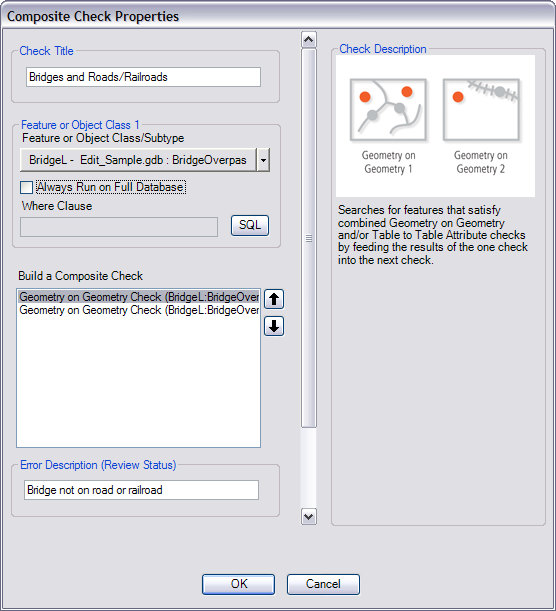
    A composite check that checks for bridges on roads and railroads
    A composite check that checks for bridges on roads and railroads
  8. Right-click the check you want to remove in the Build A Composite Check list and click Remove Check.

    The check is removed from the list.

  9. Click OK.

    The Reviewer Batch Job Manager dialog box appears.

  10. Save the batch job that contains the composite check.
  11. Cliquez sur OK.

ArcGIS Desktop

  • Accueil
  • Documentation
  • Support

ArcGIS Platform

  • ArcGIS Online
  • ArcGIS Desktop
  • ArcGIS Enterprise
  • ArcGIS for Developers
  • ArcGIS Solutions
  • ArcGIS Marketplace

A propos d'Esri

  • A propos de la société
  • Carrières
  • Blog d’Esri
  • Conférence des utilisateurs
  • Sommet des développeurs
Esri
Donnez-nous votre avis.
Copyright © 2019 Esri. | Confidentialité | Légal