Disponible avec une licence Standard ou Advanced.
Disponible avec une licence Production Mapping.
The Feature Builder window has several properties that can be customized on the Feature Builder Settings dialog box including the precision of coordinates, the function library to use, and the spatial reference extent. The Spatial Reference category contains an option that allows you to define the spatial reference of the scratch dataset. This includes the coordinate system, spatial domains, and the precision.
- Start ArcMap.
- On the menu bar, click Customize > Toolbars > Production Feature Builder.
- Click the Feature Builder button
 on the Production Feature Builder toolbar.
The Feature Builder window appears.
- Click the Settings button
 at the top of the Feature Builder window.
The Feature Builder Settings dialog box appears.
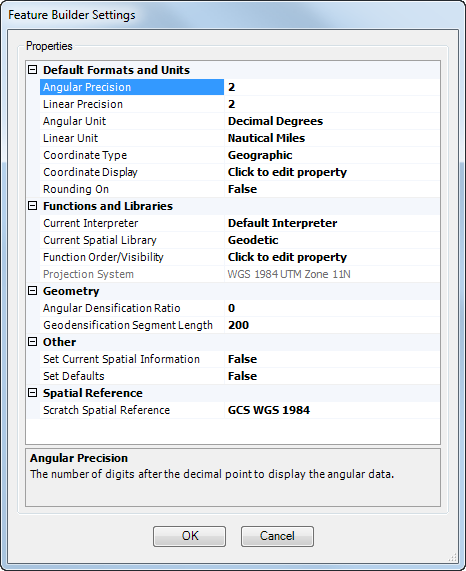
- Click the cell next to Scratch Spatial Reference.
This allows you to specify the coordinate system, spatial domains, and precision of the scratch dataset.
- Click the ellipsis button in the cell.
The New Spatial Reference dialog box appears.
- Navigate to the geographic or projected coordinate system you want to use with the scratch database.
- Click Next.
The New Spatial Reference dialog box appears with properties for x- and y-values. Default values for the coordinate system you have selected appear in the text boxes.
- If necessary, type a new minimum value for latitude in the Min X text box.
- If necessary, type a new maximum value for latitude in the Max X text box.
- If necessary, type a new minimum value for longitude in the Min Y text box.
- If necessary, type a new maximum value for longitude in the Max Y text box.
- If necessary, type a new value for the precision in the Precision text box.
- Click Next.
The New Spatial Reference dialog box appears. Vertical coordinate systems are listed.
- Navigate to the vertical coordinate system to be used with the scratch database.
- Click Next.
The New Spatial Reference dialog box appears with properties for z-values. Default values for the coordinate system you have selected appear in the text boxes.
- If necessary, type a new minimum value for z-values in the Min text box.
- If necessary, type a new maximum value for z-values in the Max text box.
- If necessary, type a new value for the precision in the Precision text box.
- Click Next.
The New Spatial Reference dialog box appears with properties for m-values. Default values for the coordinate system you have selected appear in the text boxes.
- If necessary, type a new minimum value for m-values in the Min text box.
- If necessary, type a new maximum value for m-values in the Max text box.
- If necessary, type a new value for the precision in the Precision text box.
- Click Finish.
The Feature Builder Settings dialog box appears.
- Cliquez sur OK.