ArcGIS Desktop

  • ArcGIS Pro
  • ArcMap

  • My Profile
  • Aide
  • Sign Out
ArcGIS Desktop

ArcGIS Online

La plateforme cartographique de votre organisation

ArcGIS Desktop

Un SIG professionnel complet

ArcGIS Enterprise

SIG dans votre entreprise

ArcGIS Developers

Outils de création d'applications de localisation

ArcGIS Solutions

Modèles d'applications et de cartes gratuits pour votre secteur d'activité

ArcGIS Marketplace

Téléchargez des applications et des données pour votre organisation.

  • Documentation
  • Support
Esri
  • Se connecter
user
  • Mon profil
  • Déconnexion

ArcMap

  • Accueil
  • Commencer
  • Carte
  • Analyser
  • Gérer les données
  • Outils
  • Extensions

Enabling use of the current z-value

Disponible avec une licence Production Mapping.

The Update Z values on modify check box controls whether a vertex's z-value is updated to the current z-value when the vertex is modified. When this check box is checked, z-values on any modified vertices are updated to the current z-value at the time the edits are made. In contrast, if the Update Z values on modify check box is unchecked, existing z-values are retained, and the current z-value is ignored when a vertex is modified.

In the example below, if the Update Z values on modify check box is checked and you move vertex 1, the z-value will update from 27.275 to 20.
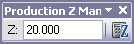
A current z-value specified on the Production Z Management toolbar
Example of a feature updated using the current z-value

If that same edit is performed when the Update Z values on modify check box is not checked, the z-value for vertex 1 remains unchanged at 27.275.

Example of a vertex that retains the original z-value when moved

By default, the Update Z values on modify check box is checked.

  1. Start ArcMap.
  2. On the main menu, click Customize > Toolbars > Production Editing.
  3. On the Production Editing toolbar, click Production Editing > Editing Properties.

    The Production Properties dialog box appears.

    Editing pane on the Production Properties dialog box
    Astuce :

    You can also open the Production Properties dialog box by clicking Customize > Production > Production Properties.

  4. Check the Update Z values on modify check box in the Z Management area.
  5. Cliquez sur OK.

Rubriques connexes

  • Configuring the z snapping environment
  • Data editing and z-enabled features

ArcGIS Desktop

  • Accueil
  • Documentation
  • Support

ArcGIS

  • ArcGIS Online
  • ArcGIS Desktop
  • ArcGIS Enterprise
  • ArcGIS
  • ArcGIS Developer
  • ArcGIS Solutions
  • ArcGIS Marketplace

A propos d'Esri

  • A propos de la société
  • Carrières
  • Blog d’Esri
  • Conférence des utilisateurs
  • Sommet des développeurs
Esri
Donnez-nous votre avis.
Copyright © 2021 Esri. | Confidentialité | Légal