ArcGIS Desktop

  • ArcGIS Pro
  • ArcMap

  • My Profile
  • Aide
  • Sign Out
ArcGIS Desktop

ArcGIS Online

La plateforme cartographique de votre organisation

ArcGIS Desktop

Un SIG professionnel complet

ArcGIS Enterprise

SIG dans votre entreprise

ArcGIS Developers

Outils de création d'applications de localisation

ArcGIS Solutions

Modèles d'applications et de cartes gratuits pour votre secteur d'activité

ArcGIS Marketplace

Téléchargez des applications et des données pour votre organisation.

  • Documentation
  • Support
Esri
  • Se connecter
user
  • Mon profil
  • Déconnexion

ArcMap

  • Accueil
  • Commencer
  • Carte
  • Analyser
  • Gérer les données
  • Outils
  • Extensions

Managing cells and rows in data source filtering

Disponible avec une licence Production Mapping.

To further refine data source filtering, you can copy, delete, sort rows, or copy cells from the Filter area of the Data Filters dialog box.

  1. Start ArcMap.
  2. Verify that you are in layout view if necessary.
  3. Right-click the graphic table element and click Properties.

    The Table Properties dialog box appears.

  4. If necessary, click the Data Source tab.

    The Data Source tab appears.
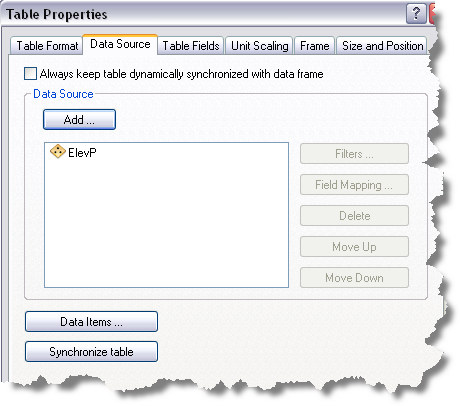
    Data Source tab
  5. Click the data source you want to use in the Data Source list on the Data Source tab.

    The chosen data source is highlighted, and the Filters button becomes available.

  6. Click Filters.

    The Data Filters dialog box appears.
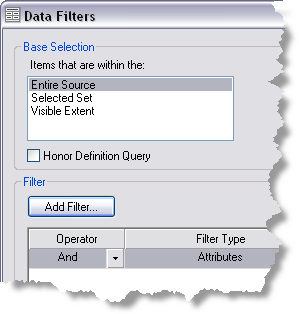
    Data Filters dialog box with filters
  7. Perform one of the following from the Filter area of the Data Filters dialog box, if necessary:
    • To copy a cell, right-click an operator or filter type cell in the Filter area and click Copy Cell.
    • To copy a row, right-click an operator or filter type row in the Filter area and click Copy Selected Row.
    • To delete a row, right-click a row in the Filter area and click Delete.
    • To sort a row, right-click a row in the Filter area and click Move Up or Move Down.
  8. Click OK to save changes to the data filters.

Rubriques connexes

  • What is a graphic table element?
  • A quick tour of the graphic table element

ArcGIS Desktop

  • Accueil
  • Documentation
  • Support

ArcGIS

  • ArcGIS Online
  • ArcGIS Desktop
  • ArcGIS Enterprise
  • ArcGIS
  • ArcGIS Developer
  • ArcGIS Solutions
  • ArcGIS Marketplace

A propos d'Esri

  • A propos de la société
  • Carrières
  • Blog d’Esri
  • Conférence des utilisateurs
  • Sommet des développeurs
Esri
Donnez-nous votre avis.
Copyright © 2021 Esri. | Confidentialité | Légal