You can leverage node styles to convey additional information about steps. As the designer, you can add an unlimited number of custom styles. Custom images can be applied to any of the three node style image settings.
- Start ArcMap.
- If necessary, click the Task Assistant button
 on the Task Manager toolbar to display the Task Assistant window.
 - Right-click in the Task Assistant window and click Style Manager.
The Style Manager dialog box appears.
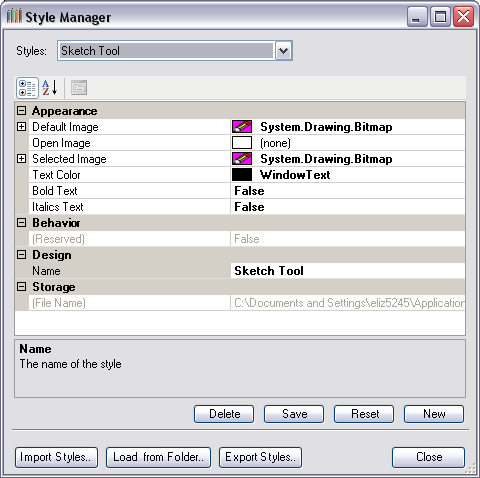
- Click New.
The New Style option is added to the Styles drop-down list and the Style Manager dialog box properties are reset.
- Click the cell next to Name, double-click the existing text, then type a name for the new style.
- Click the cell next to Default Image and click the ellipsis (...) that appears.
- Navigate to the image you want to use.
- Click Open.
- Click the cell next to Open Image and click the ellipsis (...) that appears.
- Navigate to the image you want to use.
- Click Open.
- Click the cell next to Selected Image and click the ellipsis (...) that appears.
- Navigate to the image you want to use.
- Click Open.
- Click the cell next to Text Color and click the ellipsis (...) that appears.
- Choose the color you want to use.
- Click the cell next to Bold Text and change its setting if required.
- Click the cell next to Italics Text and change its setting if required.
- Click Save to set the changes you made.
The new style is saved in the Task Assistant Manager's custom style file.
- Click Close.