ArcGIS Desktop

  • ArcGIS Pro
  • ArcMap

  • My Profile
  • Aide
  • Sign Out
ArcGIS Desktop

ArcGIS Online

La plateforme cartographique de votre organisation

ArcGIS Desktop

Un SIG professionnel complet

ArcGIS Enterprise

SIG dans votre entreprise

ArcGIS Developers

Outils de création d'applications de localisation

ArcGIS Solutions

Modèles d'applications et de cartes gratuits pour votre secteur d'activité

ArcGIS Marketplace

Téléchargez des applications et des données pour votre organisation.

  • Documentation
  • Support
Esri
  • Se connecter
user
  • Mon profil
  • Déconnexion

ArcMap

  • Accueil
  • Commencer
  • Carte
  • Analyser
  • Gérer les données
  • Outils
  • Extensions

Importing styles from a style file

Styles can be imported from a style file using the Style Manager. Imported styles are treated as custom styles.

  1. Open the Style Manager dialog box by doing one of the following:
    • Click the Start button, then click Task Assistant Manager > Style Manager.
    • Start ArcMap, click the Task Assistant button Task Assistant on the Task Manager toolbar, right-click in the Task Assistant window, and click Style Manager.
  2. Click Import Styles on the Style Manager dialog box.

    The Select a Node Style File to Open dialog box appears.
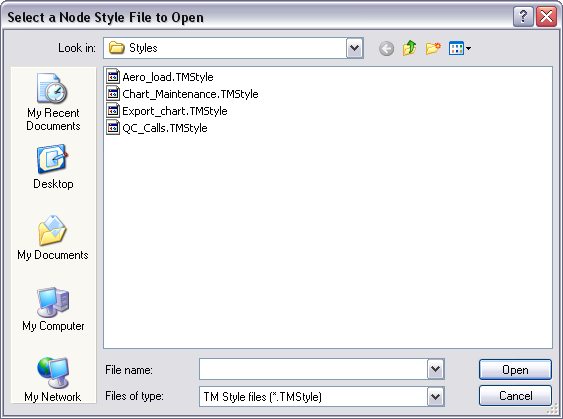
    Select a Node Style File to Open dialog box

  3. Click to highlight the node style file you want to use and click Open.

    The Import Custom Styles dialog box appears displaying all the custom styles available in the style file you chose.

    Import Custom Styles dialog box

  4. Check the check box next to each style you want to import.
  5. Click Import.

    The custom styles are loaded, saved in the Task Assistant Manager's custom style file, and available on the Style Manager dialog box on the Styles drop-down list.

  6. Remarque :

    You can import style files from any location except the directory that is the default style subfolder of the UserDataPath setting in the Arcmap.exe.config file.

    Remarque :

    Custom styles you choose to import that already exist in the Style Manager will not be imported. When you attempt to do so, a message appears indicating that a style with the same name exists and that all styles were not imported. At this time, it is not possible to overwrite existing styles using the Import command.

ArcGIS Desktop

  • Accueil
  • Documentation
  • Support

ArcGIS

  • ArcGIS Online
  • ArcGIS Desktop
  • ArcGIS Enterprise
  • ArcGIS
  • ArcGIS Developer
  • ArcGIS Solutions
  • ArcGIS Marketplace

A propos d'Esri

  • A propos de la société
  • Carrières
  • Blog d’Esri
  • Conférence des utilisateurs
  • Sommet des développeurs
Esri
Donnez-nous votre avis.
Copyright © 2021 Esri. | Confidentialité | Légal