Files can only be checked out for editing through the file manager. These include text files, PDFs, MXDs, geodatabases, and others that are stored in the product library. For instance, if you want to update a text file that contains extraction instructions, you can check out the Word document and check in the newer document as another version.
- Start ArcMap.
- If necessary, open the Product Library window by clicking Customize > Production > Product Library on the main menu.
A tree view of the product library appears.
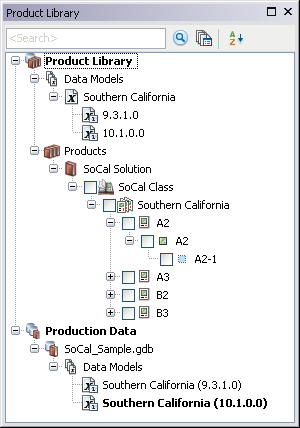
- Click the Manage Files button
 on the Product Library window.
The file manager appears.
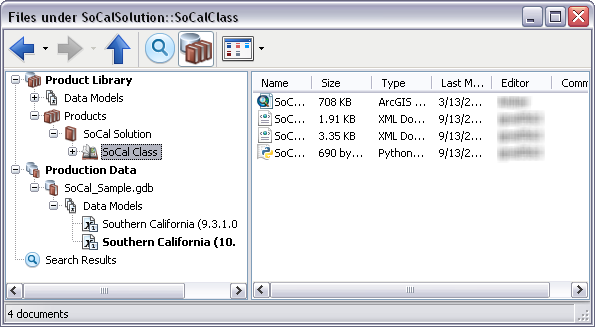
- Navigate to the file.
-
Right-click the file and click Check Out Document.
The Check Out dialog box appears. If you have previously browsed to a directory, the dialog box contains the path you specified. If you have not browsed to a directory before, the dialog box is blank.

- Click the ellipsis (...) next to the Output Location field.
The Browse For Folder dialog box appears.
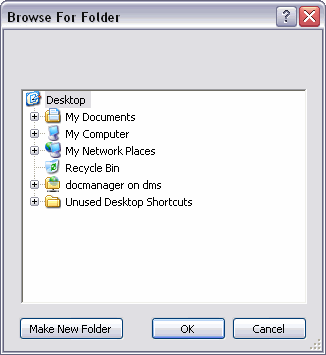
- Navigate to the directory where you want to copy the file.
- Click OK.
The Check Out dialog box appears with the path you defined.
- If you want to open the file, check the Open check box.
- Uncheck the Overwrite existing file(s) check box if a previous version of the .mxd exists in the location you chose and you do not want to overwrite this file with the version from the product library.
If you don't check this check box and you have a local version, the local version is used instead of the one from the product library.
- [OK] をクリックします。
The file is checked out to the location you specified.