ArcGIS Desktop

  • ドキュメント
  • サポート

  • My Profile
  • ヘルプ
  • Sign Out
ArcGIS Desktop

ArcGIS Online

組織のマッピング プラットフォーム

ArcGIS Desktop

完全なプロ仕様の GIS

ArcGIS Enterprise

エンタープライズ GIS

ArcGIS for Developers

位置情報利用アプリの開発ツール

ArcGIS Solutions

各種業界向けの無料のテンプレート マップおよびテンプレート アプリケーション

ArcGIS Marketplace

組織で使えるアプリとデータを取得

  • ドキュメント
  • サポート
Esri
  • サイン イン
user
  • マイ プロフィール
  • サイン アウト

Help

  • ホーム
  • はじめに
  • マップ
  • 解析
  • データ管理
  • ツール
  • その他...

Enabling the Advanced View command

The Advanced View command in the Product Library window is disabled by default. You can enable it in the Product Library Properties or the Production Properties dialog box. These steps guide you through the Product Library Properties dialog box.

  1. Start ArcMap.
  2. If necessary, open the Product Library window by clicking Customize > Production > Product Library on the main menu.

    A tree view of the product library appears.
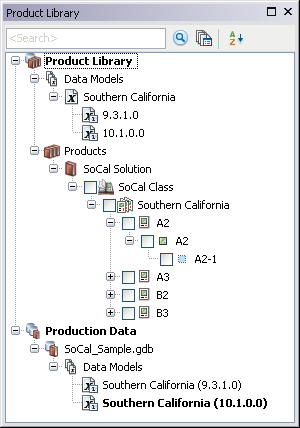
    Product Library tree view
  3. Right-click Product Library and click Properties.

    The Product Library Properties dialog box appears.

  4. ヒント:

    You can also click Customize > Production > Production Properties and click the Management pane to enable the command.

  5. Click the cell next to Advanced View, click the drop-down arrow that appears, and choose Enable.
  6. [OK] をクリックします。

ArcGIS Desktop

  • ホーム
  • ドキュメント
  • サポート

ArcGIS プラットフォーム

  • ArcGIS Online
  • ArcGIS Desktop
  • ArcGIS Enterprise
  • ArcGIS for Developers
  • ArcGIS Solutions
  • ArcGIS Marketplace

Esri について

  • 会社概要
  • 採用情報
  • スタッフ ブログ
  • ユーザ カンファレンス
  • デベロッパ サミット
Esri
ご意見・ご感想をお寄せください。
Copyright © 2017 Esri. | プライバシー | リーガル