Data Reviewer のライセンスで利用可能。
Orphan features are polylines that are not connected to other polyline, polygon or point features. For example, in a street centerline feature class, an orphan is a street that is not connected to any other streets. This may be valid in some data models, and invalid in others.
The Orphan check searches a feature class for line features that are disconnected from other features in the same feature class. The check can optionally search for points, lines and polygon features in other feature classes as well. The Orphan check can be run on an entire feature class, a subtype, or a set of features selected using a SQL query.
Once you have defined the criteria for the check, you can configure the notes and a severity rating. The notes allow you to provide a more specific description for the features that have been written to the Reviewer table and are copied to the Notes field in the Reviewer table. The severity rating allows you to indicate how important the results from a check are in terms of your quality processes. The lower the number, the greater the priority the check's results have.
- Start ArcMap.
- On the main menu, click Customize > Toolbars > Data Reviewer.
- Click the Select Data Check drop-down arrow on the Data Reviewer toolbar, click the plus sign (+) next to Polyline Checks, then click Orphan Check.
The Orphan Check Properties dialog box appears.
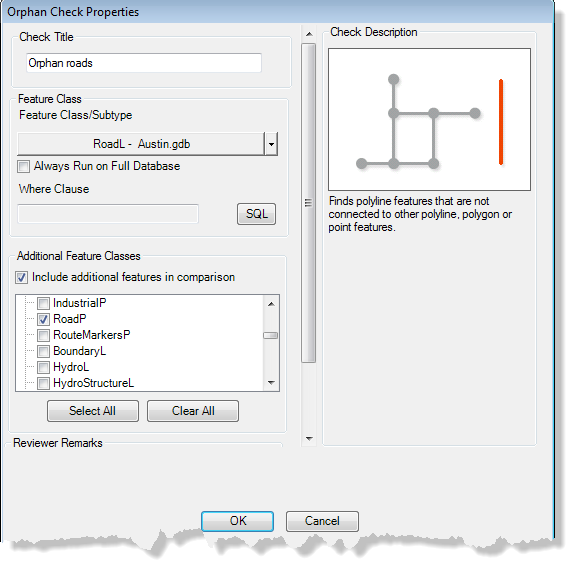
- If necessary, type a unique name for the check in the Check Title text box.
- Click the Feature Class/Subtype drop-down arrow to choose the feature class and subtype on which to run the check.
- To run the check on the entire feature class and save this setting, check the Always Run on Full Database check box.
- To run the check on specific features in a feature class, click SQL to construct a SQL query.
- To include additional features when searching for orphans, check those sources in the Additional Feature Classes parameter.
- If necessary, type descriptive text for the check results in the Notes text box in the Reviewer Remarks area.
- If necessary, click the Severity drop-down arrow and choose a value that indicates the priority of the check's results in the Reviewer Remarks area.
The severity indicates the importance of the check result. The values range from 1 to 5, with 1 being the highest priority and 5 being the lowest.
- [OK] をクリックします。
- Click the Run Data Check button
 on the Data Reviewer toolbar.
The Features to Validate dialog box appears.

- Choose an option in the Features to Validate area.
- Selection Set—The check is run on the features that are currently selected in the map.
- Current Extent—The check is run on the current map extent, which is controlled by the map scale.
- Definition Query—The check is run on the features that are displayed based on definition queries that have been created for the feature class.
- Full Database—The check is run on all the features in the feature class.
- To run the check only on features that have been edited in a versioned workspace, check the Changed Features Only check box.
- Click OK.
The check is run on the extent specified on the Features to Validate dialog box.
When the check finishes, a check results dialog box appears.
- Do one of the following:
- If you want to browse the results in the Browse Features window, choose the Browse Results option.
- If you have started a Reviewer session and want to record the results in the Reviewer table, choose the Write to Reviewer Table option.
- [OK] をクリックします。