Production Mapping ライセンスで利用できます。
Rules can be copied within the same specification or a different specification. When rules are copied to the same specification, you can edit the rule's Structured Query Language (SQL) statement or Visual Basic script as well as the representation rule being used. For example, if you want to change the script and associate a different symbol with a similar rule, you can modify the script and change the representation rule symbol.
- Start ArcMap.
- On the main menu, click Customize > Toolbars > Production Symbology.
The Production Symbology toolbar appears.
- Click the Visual Specifications button
 on the Production Symbology toolbar.
The Visual Specifications dialog box appears.
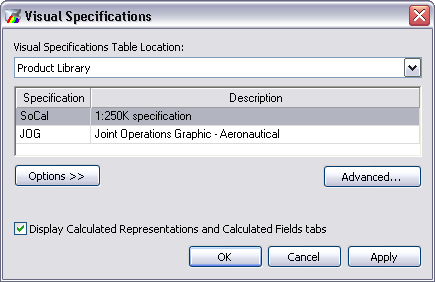
- Click Advanced.
The Visual Specifications Advanced View dialog box appears, displaying rules saved in the selected specifications.
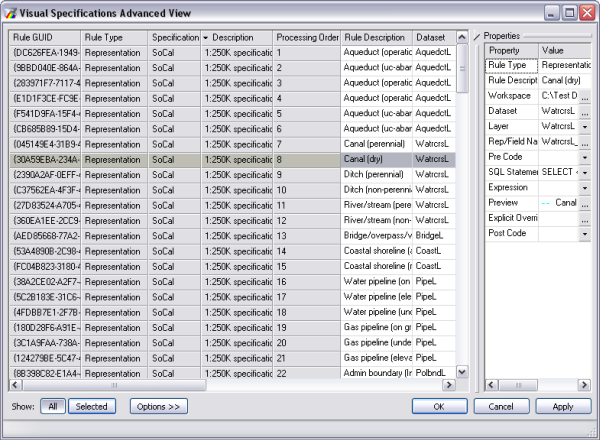
- Select the rules you want to copy in the rules table.
- Right-click in the rules table and click Copy.
- Right-click in the rules table and click Paste.
The Paste Rule(s) dialog box appears.

- Click the Choose Specification drop-down arrow and choose the specification into which you want to paste the rules.
- Click OK.
The rules appear in the rules table with the specification you selected.
- [OK] をクリックします。