ArcGIS Desktop

  • ArcGIS Pro
  • ArcMap

  • My Profile
  • ヘルプ
  • Sign Out
ArcGIS Desktop

ArcGIS Online

組織のマッピング プラットフォーム

ArcGIS Desktop

完全なプロ仕様の GIS

ArcGIS Enterprise

エンタープライズ GIS

ArcGIS Developers

位置情報利用アプリの開発ツール

ArcGIS Solutions

各種業界向けの無料のテンプレート マップおよびテンプレート アプリケーション

ArcGIS Marketplace

組織で使えるアプリとデータを取得

  • ドキュメント
  • サポート
Esri
  • サイン イン
user
  • マイ プロフィール
  • サイン アウト

ArcMap

  • ホーム
  • はじめに
  • マップ
  • 解析
  • データ管理
  • ツール
  • エクステンション

Configuring feature templates for a step

A step can be configured for a feature template that will be executed during an edit session. By configuring the feature template for a step, you can streamline the workflow for the end user.

  1. Start ArcMap.
  2. If necessary, click the Task Assistant button Task Assistant on the Task Manager toolbar to display the Task Assistant window.
  3. Open a task assistant workflow.
  4. Click to select the step to configure in the Task Assistant window.
  5. Click the Designer tab.
  6. Click the cell next to Feature Template and click the ellipsis (...) that appears.

    The Feature Template Item Editor dialog box appears.
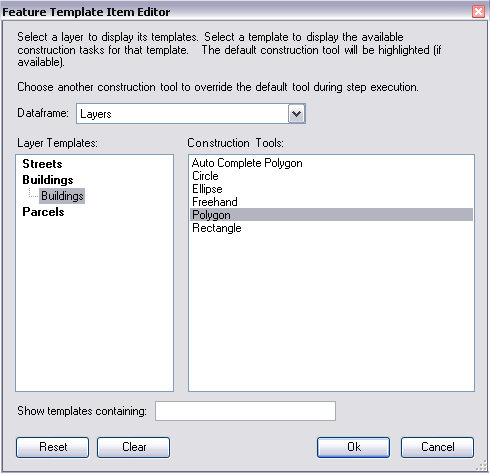
    Feature Template Item Editor dialog box
  7. Highlight the layer containing the feature template to be used and choose the appropriate template. Ensure that the correct construction tool to be used is also highlighted.
  8. Click OK.

    メモ:

    Use the Show templates containing text box to filter the list of layers and templates. Clearing the entered text displays all layers and templates.

ArcGIS Desktop

  • ホーム
  • ドキュメント
  • サポート

ArcGIS

  • ArcGIS Online
  • ArcGIS Desktop
  • ArcGIS Enterprise
  • ArcGIS
  • ArcGIS Developer
  • ArcGIS Solutions
  • ArcGIS Marketplace

Esri について

  • 会社概要
  • 採用情報
  • Esri ブログ
  • ユーザ カンファレンス
  • デベロッパ サミット
Esri
ご意見・ご感想をお寄せください。
Copyright © 2021 Esri. | プライバシー | リーガル