ArcGIS Desktop

  • ArcGIS Pro
  • ArcMap

  • My Profile
  • ヘルプ
  • Sign Out
ArcGIS Desktop

ArcGIS Online

組織のマッピング プラットフォーム

ArcGIS Desktop

完全なプロ仕様の GIS

ArcGIS Enterprise

エンタープライズ GIS

ArcGIS Developers

位置情報利用アプリの開発ツール

ArcGIS Solutions

各種業界向けの無料のテンプレート マップおよびテンプレート アプリケーション

ArcGIS Marketplace

組織で使えるアプリとデータを取得

  • ドキュメント
  • サポート
Esri
  • サイン イン
user
  • マイ プロフィール
  • サイン アウト

ArcMap

  • ホーム
  • はじめに
  • マップ
  • 解析
  • データ管理
  • ツール
  • エクステンション

Changing the Default Database in ArcCatalog

Standard または Advancedのライセンスで利用可能。

When there are many ArcGIS Workflow Manager (Classic) database connections configured on a local system, the Workflow Manager (Classic) applications will access the default database connection. This is denoted with a check mark on the connection in the ArcCatalog Workflow Manager (Classic) databases node.

  1. Start ArcCatalog and ensure that the Workflow Manager (Classic) extension is enabled.
  2. Right-click the Workflow Manager (Classic) database node you want to activate and click Set as default database.

    The default database for Workflow Manager (Classic) will be denoted with a check mark.
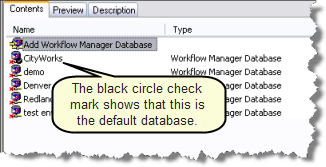
    Default Workflow Manager Database
    The check mark shows which Workflow Manager (Classic) database is the one the client applications will access when open.

ArcGIS Desktop

  • ホーム
  • ドキュメント
  • サポート

ArcGIS

  • ArcGIS Online
  • ArcGIS Desktop
  • ArcGIS Enterprise
  • ArcGIS
  • ArcGIS Developer
  • ArcGIS Solutions
  • ArcGIS Marketplace

Esri について

  • 会社概要
  • 採用情報
  • Esri ブログ
  • ユーザ カンファレンス
  • デベロッパ サミット
Esri
ご意見・ご感想をお寄せください。
Copyright © 2021 Esri. | プライバシー | リーガル