ArcGIS Desktop

  • Документация
  • Поддержка

  • My Profile
  • Справка
  • Sign Out
ArcGIS Desktop

ArcGIS Online

Картографическая платформа вашей организации

ArcGIS Desktop

Полноценная профессиональная ГИС

ArcGIS Enterprise

ГИС предприятия

ArcGIS for Developers

Инструменты для встраивания приложений с местоположениями

ArcGIS Solutions

Бесплатные шаблоны карт и приложений для отрасли

ArcGIS Marketplace

Получение приложения и данных для вашей организации.

  • Документация
  • Поддержка
Esri
  • Войти
user
  • Мой профиль
  • Выход

Help

  • На главную
  • Начало работы
  • Карта
  • Анализ
  • Управление данными
  • Инструменты
  • Больше...

Checking in multiple products

There are times when it is more efficient to work with more than one product at a time, or when other processes within ArcGIS for Desktop may require access to the products outside the product library.

  1. Start ArcMap.
  2. If necessary, open the Product Library window by clicking Customize > Production > Product Library on the main menu.

    A tree view of the product library appears.
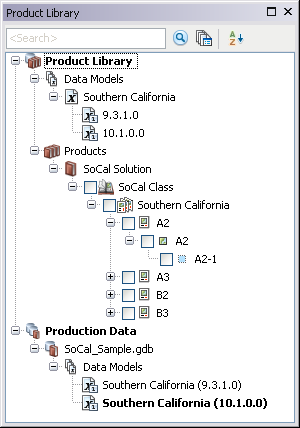
    Product Library tree view
  3. If necessary, expand Product Library and Products.
  4. Navigate to the series that contains the products you want to check in.
  5. Right-click the series and click Batch Manage Products.

    The Batch Manage Products dialog box appears.

  6. Confirm that the series contains the products you want to manage.
  7. Click the Action drop-down arrow and choose Check In.
  8. Check the check box for each product you want to check in from the Available Products list.
  9. Click OK.

    The Check In Product dialog box appears.

  10. If necessary, type a description of the changes you made in the Comments text box.

    The option to change the file version is not enabled when these actions are performed in batch.

  11. To keep the .mxd files checked out, check the Keep Checked Out check box.

    Примечание:

    If this check box is checked, the .mxd files remain checked out, and will not be checked in.

  12. If you do not want to keep a copy of the map documents on your machine, uncheck the Keep Local Copy check box.
  13. Click OK.

    The Checking In Product dialog box appears with the progress information.

    Checking In Product dialog box with progress information
  14. Click OK when the process completes.

ArcGIS Desktop

  • На главную
  • Документация
  • Поддержка

ArcGIS Platform

  • ArcGIS Online
  • ArcGIS Desktop
  • ArcGIS Enterprise
  • ArcGIS for Developers
  • ArcGIS Solutions
  • ArcGIS Marketplace

Об Esri

  • О нас
  • Карьера
  • Блог сотрудников
  • Конференция пользователей
  • Саммит разработчиков
Esri
Расскажите нам, что вы думаете.
Copyright © 2017 Esri. | Конфиденциальность | Правовая информация