The Create Airspace Lines tool generates data for labeling both sides of coincident airspace features. The tool has configurable settings, known as preferences, that control airspace types, fields for labeling, and cluster tolerance used during processing. You can save and manage these settings from the Production Properties dialog box.
You can have multiple preferences. You can choose different preferences to use in the Create Airspace Lines dialog box. This improves productivity, as you do not have to set preferences each time you run the tool.
- Запустите ArcMap.
- Make sure that the production properties are set correctly.
Properties include the product library workspace, production database workspace, Data Model Version, and Instances Maintained. The Data Model Version needs to be set to an AIS-based data model.
-
В главном меню щелкните Настроить, > Панели инструментов, > Production Properties.
Откроется диалоговое окно Production Properties.
- Click Aviation Properties in the list on the left side of the Production Properties dialog box.
- In the Tool Options section, click the cell next to Create Airspace Lines Preferences and click the ellipsis (...) that appears.
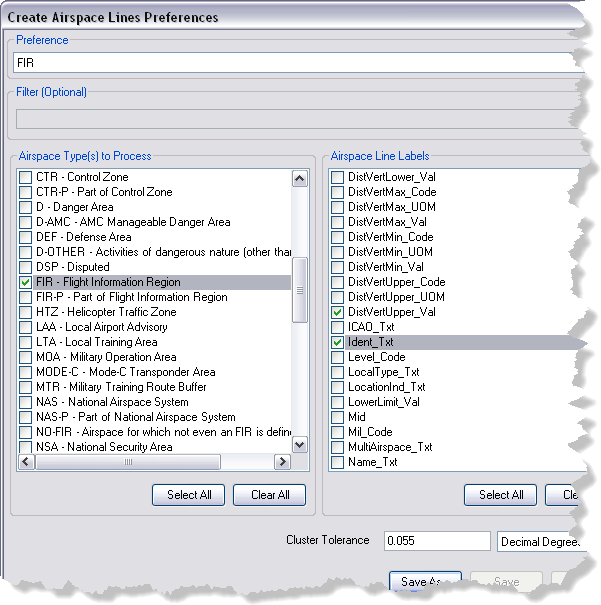
The Create Airspace Lines Preferences dialog box appears.
- In the Airspace Type(s) to Process list, check the check boxes next to the types you want to include in the airspace line creation process.
- In the Airspace Line Labels list, check the check boxes next to the fields you want to use in label expressions.
- Type a numerical value in the Cluster Tolerance text box.
- If necessary, click the drop-down arrow next to Decimal Degrees and choose a distance unit.
- Click Save As.
The Preference Name dialog box appears.
- Type a name for the airspace lines preferences.
- Click OK to close the Preference Name dialog box.
The preference name appears in the Preference drop-down list at the top of the Create Airspace Lines Preferences dialog box.
- Optionally, click Save As to save an existing preference to a new name.
- Optionally, click Delete to remove the preference.
- Click OK to close the Create Airspace Lines Preferences dialog box.