ArcGIS Desktop

  • ArcGIS Pro
  • ArcMap

  • My Profile
  • Справка
  • Sign Out
ArcGIS Desktop

ArcGIS Online

Картографическая платформа вашей организации

ArcGIS Desktop

Полноценная профессиональная ГИС

ArcGIS Enterprise

ГИС предприятия

ArcGIS for Developers

Инструменты для встраивания приложений с местоположениями

ArcGIS Solutions

Бесплатные шаблоны карт и приложений для отрасли

ArcGIS Marketplace

Получение приложения и данных для вашей организации.

  • Документация
  • Поддержка
Esri
  • Войти
user
  • Мой профиль
  • Выход

ArcMap

  • Home
  • Get Started
  • Map
  • Analyze
  • Manage Data
  • Tools
  • Extensions

Cutting line features

Cut Line is one of the options for the Aviation Line Bypass tool. It cuts line features at point features, for example, navaids and compass roses, when the line features intersect the symbol geometry of the point features. You can choose to cut the bypasses for a selected line, or run the process on an entire feature class.

Примечание:

This tool requires a projected coordinate system set within the active data frame's properties.

  1. Запустите ArcMap.
  2. On the main menu, click Customize > Toolbars > Aviation Editing.
  3. Click the Aviation Line Bypass button Aviation Line Bypass on the Aviation Editing toolbar.

    The Line Bypass dialog box appears.
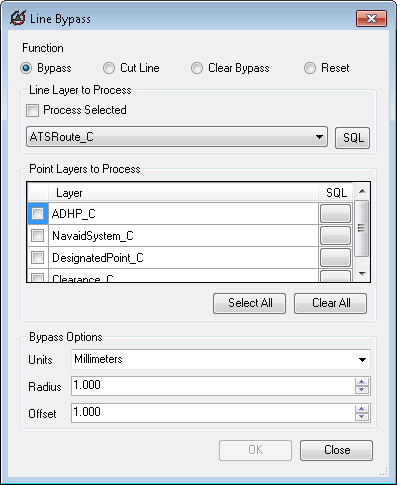
    Bypass option selected

    Ensure the Bypass radio button is selected by default.

  4. Click the Cut Line option.
    Cut Line option selected
  5. Choose an option for cutting the bypasses.

    If you selected at least one line feature

    Check the Process Selected check box to run the process on your selection.

    To cut a bypass on all the necessary lines in a layer

    Click the Line Layer to Process drop-down arrow and choose a layer.

    Примечание:

    If you don't have a line feature selected, it will still process features based on the definition query on the line feature layer.

  6. Check the check boxes next to the layers that contain points where the line features need to be cut.

    Подсказка:

    You can click Select All to select all the point layers.

  7. Нажмите ОК.
  8. A progress dialog box appears.

  9. Optionally, if you did not check the Close this dialog when completed successfully check box, click OK to close the progress dialog box.

    A results dialog box appears with the summary of lines and points processed and any errors that occurred.

  10. Click Close to close the results dialog box.

ArcGIS Desktop

  • На главную
  • Документация
  • Поддержка

ArcGIS Platform

  • ArcGIS Online
  • ArcGIS Desktop
  • ArcGIS Enterprise
  • ArcGIS for Developers
  • ArcGIS Solutions
  • ArcGIS Marketplace

Об Esri

  • О нас
  • Карьера
  • Блог Esri
  • Конференция пользователей
  • Саммит разработчиков
Esri
Расскажите нам, что вы думаете.
Copyright © 2020 Esri. | Конфиденциальность | Правовая информация