ArcGIS Desktop

  • ArcGIS Pro
  • ArcMap

  • My Profile
  • Справка
  • Sign Out
ArcGIS Desktop

ArcGIS Online

Картографическая платформа вашей организации

ArcGIS Desktop

Полноценная профессиональная ГИС

ArcGIS Enterprise

ГИС предприятия

ArcGIS for Developers

Инструменты для встраивания приложений с местоположениями

ArcGIS Solutions

Бесплатные шаблоны карт и приложений для отрасли

ArcGIS Marketplace

Получение приложения и данных для вашей организации.

  • Документация
  • Поддержка
Esri
  • Войти
user
  • Мой профиль
  • Выход

ArcMap

  • Home
  • Get Started
  • Map
  • Analyze
  • Manage Data
  • Tools
  • Extensions

Editing annotation

The Edit Annotation tool is the best tool to access the shortcut menu containing the annotation editing options. Selecting annotation with the tool and right-clicking shows the shortcut menu. The Abbreviate and Anno Resize options have additional options available.

For annotation abbreviation, the options listed are based on the values in a domain (Code_LabelStatus), which is associated with the LabelStatus_Code field in the cartographic feature class. The values in that domain show up as abbreviation options, and the result is a change in the LabelStatus_Code attribute value and an abbreviated annotation feature.

Learn more about creating annotation with an advanced callout and multiple text elements

  1. Запустите ArcMap.
  2. On the main menu, click Customize > Toolbars > Aviation Editing.
  3. Click the Production Start Editing button Production Start Editing on the Aviation Editing toolbar.

    Примечание:

    The Manage Features and Create Attributes, Update Attributes, or Metadata Attributes windows automatically appear when you start an edit session using the Production Start Editing tool.

    Подсказка:

    If the Create Attributes, Update Attributes, or Metadata Attributes window does not appear when you start an edit session, click the Show/Hide Attributes button Show/Hide Attributes on the Manage Features window.

  4. On the main menu, click Customize > Toolbars > Aviation Annotation.
  5. Click the Edit Annotation tool Edit Annotation on the Aviation Annotation toolbar.
  6. Click an annotation feature to select it.
  7. Right-click the annotation feature and choose a function in the shortcut menu.
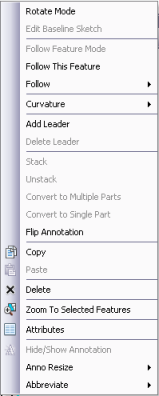
    Shortcut menu for editing annotation

ArcGIS Desktop

  • На главную
  • Документация
  • Поддержка

ArcGIS Platform

  • ArcGIS Online
  • ArcGIS Desktop
  • ArcGIS Enterprise
  • ArcGIS for Developers
  • ArcGIS Solutions
  • ArcGIS Marketplace

Об Esri

  • О нас
  • Карьера
  • Блог Esri
  • Конференция пользователей
  • Саммит разработчиков
Esri
Расскажите нам, что вы думаете.
Copyright © 2020 Esri. | Конфиденциальность | Правовая информация