ArcGIS Desktop

  • ArcGIS Pro
  • ArcMap

  • My Profile
  • Справка
  • Sign Out
ArcGIS Desktop

ArcGIS Online

Картографическая платформа вашей организации

ArcGIS Desktop

Полноценная профессиональная ГИС

ArcGIS Enterprise

ГИС предприятия

ArcGIS for Developers

Инструменты для встраивания приложений с местоположениями

ArcGIS Solutions

Бесплатные шаблоны карт и приложений для отрасли

ArcGIS Marketplace

Получение приложения и данных для вашей организации.

  • Документация
  • Поддержка
Esri
  • Войти
user
  • Мой профиль
  • Выход

ArcMap

  • Home
  • Get Started
  • Map
  • Analyze
  • Manage Data
  • Tools
  • Extensions

Editing instrument approach profile view elements

Прежние версии:

10.6 will be the last release when the Edit Instrument Approach Profile functionality will be available.

Adjacent instrument approach profile view elements are connected through nodes and lines. When lines and points intersect (as in the intersection of a flight path and a vertical), a node is present. When a node is selected, the node selection is of a higher priority than the corresponding line endpoint. When a node is selected, the selection envelope of the point is identified by the four small vertices of the selection envelope, as shown in the image below.
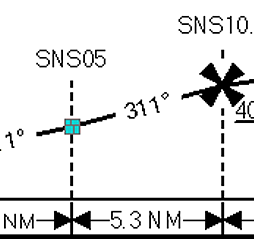
A selected node

When a line is selected, the endpoints of the line are identified by the filled boxes at either end of the line, as shown in the image below.
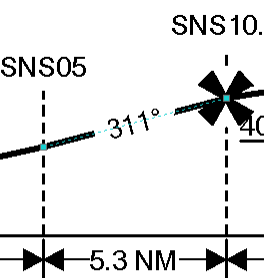
A selected line
  1. Запустите ArcMap.
  2. On the main menu, click View > Layout View.
  3. Add the Edit Instrument Approach Profile button to a toolbar by doing the following:
    1. On the main menu, click Customize > Customize Mode.

      The Customize dialog box appears.

    2. Click the Commands tab.
    3. In the Categories list, click Aviation.
    4. Click and drag the Edit Instrument Approach Profile button Edit Instrument Approach Profile from the Commands list to a toolbar.
    5. Click Close.
  4. Select a profile element.

    Подсказка:

    Select more than one element by pressing the Ctrl key on the keyboard while selecting additional elements.

  5. Drag the element to move it.
  6. Drag a control handle to resize most elements.
  7. Right-click the element and click Properties to edit the font, position, size, and symbol of the element.

    Most text elements can be edited inside this dialog box.

    Подсказка:

    If you make the font size too large for the existing tray (usually larger than a 6 pt. font size), you will need to increase the default tray element height in the instrument approach profile settings.

  8. Double-click any text element to access the text editor.

    Подсказка:

    You can also modify the text in missed approach boxes.

ArcGIS Desktop

  • На главную
  • Документация
  • Поддержка

ArcGIS Platform

  • ArcGIS Online
  • ArcGIS Desktop
  • ArcGIS Enterprise
  • ArcGIS for Developers
  • ArcGIS Solutions
  • ArcGIS Marketplace

Об Esri

  • О нас
  • Карьера
  • Блог Esri
  • Конференция пользователей
  • Саммит разработчиков
Esri
Расскажите нам, что вы думаете.
Copyright © 2020 Esri. | Конфиденциальность | Правовая информация