ArcGIS Desktop

  • Документация
  • Поддержка

  • My Profile
  • Справка
  • Sign Out
ArcGIS Desktop

ArcGIS Online

Картографическая платформа вашей организации

ArcGIS Desktop

Полноценная профессиональная ГИС

ArcGIS Enterprise

ГИС предприятия

ArcGIS for Developers

Инструменты для встраивания приложений с местоположениями

ArcGIS Solutions

Бесплатные шаблоны карт и приложений для отрасли

ArcGIS Marketplace

Получение приложения и данных для вашей организации.

  • Документация
  • Поддержка
Esri
  • Войти
user
  • Мой профиль
  • Выход

ArcMap

  • На главную
  • Начало работы
  • Карта
  • Анализ
  • Управление данными
  • Инструменты
  • Дополнительные модули

Adding and sorting table fields for data items

Sorting data in a table clarifies its intent. You can add and sort table fields in a graphic table element. You can sort fields in ascending or descending order. You can apply sorting rules to multiple fields.

  1. Start ArcMap.
  2. Verify that you are in layout view if necessary.
  3. Right-click the graphic table element and click Properties.

    The Table Properties dialog box appears.

  4. If necessary, click the Data Source tab.

    The Data Source tab appears.
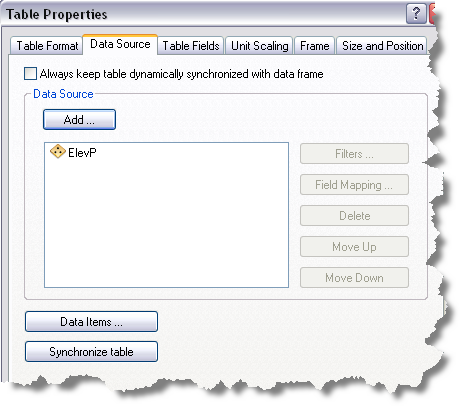
    Data Source tab
  5. Click Data Items on the Data Source dialog box.

    The Data Items dialog box appears.

    Data Items dialog box
  6. Click Operations.

    The Operations Order dialog box appears.

    Operations Order dialog box
  7. In the Available Operations list, click SORTING.
  8. Click the Move button Move.

    The SORTING option is added to the Operations Order list.

  9. Click OK.

    The Data Items dialog box appears, and the Sort Options button is enabled.

    Data Items dialog box with Sort Options enabled
  10. Click Sort Options.

    The Sort Options dialog box appears.

  11. Click Add Table Fields on the Sort Options dialog box.

    The Table Fields Selector dialog box appears.

  12. Click to choose the field you want to add.

    Подсказка:

    You can select more than one field by pressing CTRL and clicking additional fields.

  13. Click OK.

    The Sort Options dialog box appears.

  14. To sort a field in ascending or descending order, click the cell next to each field and choose an option from the drop-down menu that appears in the Sort Order column.
    The Sort Options dialog box
  15. Click OK.

    The Data Items dialog box appears.

  16. Click OK.
  17. The Table Properties dialog box appears.
  18. Click OK.

    The graphic table element displays on the layout with fields sorted according to the choices you made in steps 10–14.

Связанные разделы

  • What is a graphic table element?
  • A quick tour of the graphic table element

ArcGIS Desktop

  • На главную
  • Документация
  • Поддержка

ArcGIS Platform

  • ArcGIS Online
  • ArcGIS Desktop
  • ArcGIS Enterprise
  • ArcGIS for Developers
  • ArcGIS Solutions
  • ArcGIS Marketplace

Об Esri

  • О нас
  • Карьера
  • Блог сотрудников
  • Конференция пользователей
  • Саммит разработчиков
Esri
Расскажите нам, что вы думаете.
© Copyright 2016 Environmental Systems Research Institute, Inc. | Конфиденциальность | Правовая информация