ArcGIS Desktop

  • Документация
  • Поддержка

  • My Profile
  • Справка
  • Sign Out
ArcGIS Desktop

ArcGIS Online

Картографическая платформа вашей организации

ArcGIS Desktop

Полноценная профессиональная ГИС

ArcGIS Enterprise

ГИС предприятия

ArcGIS for Developers

Инструменты для встраивания приложений с местоположениями

ArcGIS Solutions

Бесплатные шаблоны карт и приложений для отрасли

ArcGIS Marketplace

Получение приложения и данных для вашей организации.

  • Документация
  • Поддержка
Esri
  • Войти
user
  • Мой профиль
  • Выход

ArcMap

  • На главную
  • Начало работы
  • Карта
  • Анализ
  • Управление данными
  • Инструменты
  • Дополнительные модули

Managing surface models

The Compose Surface tool allows you to manage multiple surface models in the Compose Surface window. Your surface models can have several purposes. For example, you can export and thin point values from the model and apply them to a navigational product like a paper chart or ENC or calculate slope across a surface to support pipeline planning. These products require that you are able to trace back to where the source data came from in cases of emergency. Therefore, a surface model is never permanently deleted from the BIS geodatabase in case it is required that a surface model be retrieved for official review.

  1. Start ArcMap.
  2. On the main menu, click Customize > Toolbars > Bathymetry.
  3. Click the Compose Surface button Compose Surface on the Bathymetry toolbar.

    The Compose Surface window appears.

  4. Click the Manage Surface Models button Manage Surface Model at the top of the Compose Surface window.

    The Manage Surface Model dialog box appears. A list of your saved surface models, along with basic metadata, is displayed.
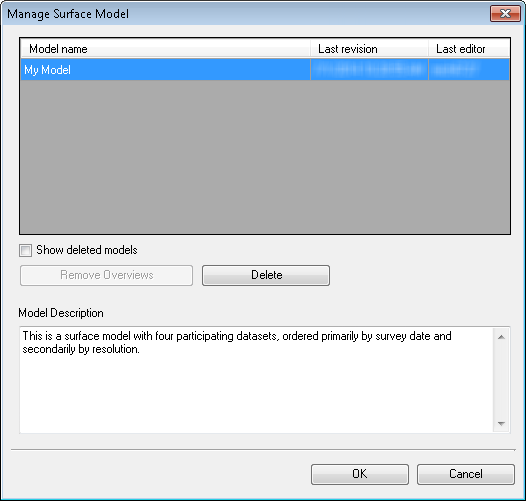
    Manage Surface Model dialog box
  5. Choose the model in the list that you want to manage.
  6. Perform the following to manage the surface model.

    To remove overviews from a composite surface within the surface model

    Click Remove Overviews.

    To remove the surface model from the list of models in the Manage Surface Model dialog box.

    Click Delete.

    Примечание:

    The surface model is not deleted from the BIS workspace; it remains in its geodatabase for tracking purposes.

    To display all surface models, active and deleted, in the list of models

    Check the Show deleted models check box.

  7. Click OK to save changes.

    Подсказка:

    You can click Cancel to discard the changes.

Связанные разделы

  • Composing a surface model
  • Loading a rule file
  • Saving a surface model
  • Loading a surface model

ArcGIS Desktop

  • На главную
  • Документация
  • Поддержка

ArcGIS Platform

  • ArcGIS Online
  • ArcGIS Desktop
  • ArcGIS Enterprise
  • ArcGIS for Developers
  • ArcGIS Solutions
  • ArcGIS Marketplace

Об Esri

  • О нас
  • Карьера
  • Блог сотрудников
  • Конференция пользователей
  • Саммит разработчиков
Esri
Расскажите нам, что вы думаете.
Copyright © 2018 Esri. | Конфиденциальность | Правовая информация