Through the Annotation Abbreviate Settings dialog box, you can indicate what field controls the abbreviation options accessed by the label expression and an annotation type. For example, you can choose a field whose domain values can be used in a label expression to provide different options for the annotation to appear.
- Запустите ArcMap.
-
В главном меню щелкните Настроить, > Панели инструментов, > Production Properties.
Откроется диалоговое окно Production Properties.
- Ensure that the correct product library and production database are set.
- Click Aviation Properties in the list on the left side of the Production Properties dialog box.
-
Click the cell next to
Abbreviate Annotation Settings and click the ellipsis (...) that appears.
The Abbreviate Annotation Settings dialog box appears.
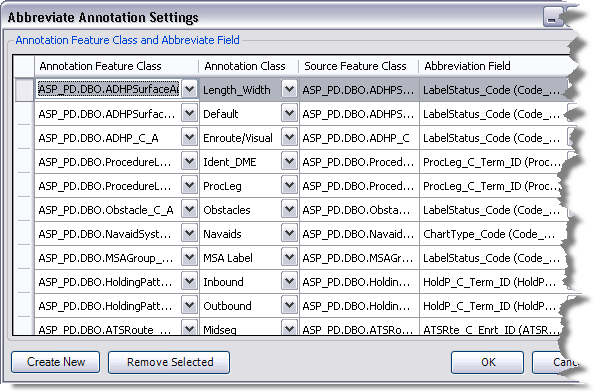
- Click Create New to add a row to the table.
- Click the drop-down arrow in the Annotation Feature Class cell and choose the annotation feature class for which to define abbreviation settings.
- Click the drop-down arrow in the Annotation Class cell and choose the annotation type for which you want to provide annotation options.
The type of annotation available in the drop-down list depends on the values available in the annotation feature class settings.
- Click the drop-down arrow in the Abbreviation Field cell and choose the field from the source feature class that contains the value to be used for the abbreviation.
The default value is LabelStatus_Code, but you can choose any field that has a domain associated with it. The name of the domain associated with the field is listed next to the field name.
- Repeat steps 6 through 9 to add more new settings as needed.
- Нажмите ОК.
Once the abbreviation settings are defined, the domain values for the abbreviation field appear. When you choose a value from the domain, the source feature is updated with the new value. If you are using visual specifications, the actual annotation is not updated until visual specifications are applied, as appropriate. If you are using label expressions, the expression is refreshed when you choose an option.