The Generate Land Areas tool, when used for an Electronic Navigational Chart (ENC), can improve production efficiency. When creating a new cell, the Generate Land Areas tool automates the creation of polygon land area features from existing line work contained in COALNE, M_COVR, and other feature classes. All autogenerated land areas will be adjacent to the defined coastline feature. You must define the metadata feature so that the Generate Land Areas tool can incorporate the cell extent. Depth contour features need to be defined so the tool can determine which side of the coastline feature to build the land areas. The Generate Land Areas tool was designed for new cell production but can be used in limited scope to maintain existing data. When maintaining existing cell data, the tool performs the following edit actions as it creates land areas:
- Deletes existing land areas that are not supported by the defined coastline features
- Replaces land areas that are partially supported by the defined coastline features with a new land area that is fully supported by the coastline feature
- Запустите ArcMap.
- В главном меню щелкните Настроить, > Панели инструментов, > Production Editing.
- On the main menu, click Customize > Toolbars > Nautical.
- Щелкните кнопку Начать редактирование продукта
 , расположенную на панели инструментов Редактирование продукта.
- On the Nautical toolbar, click Nautical > Generate Land Areas.
The Generate Land Areas dialog box appears with many of the fields already populated.
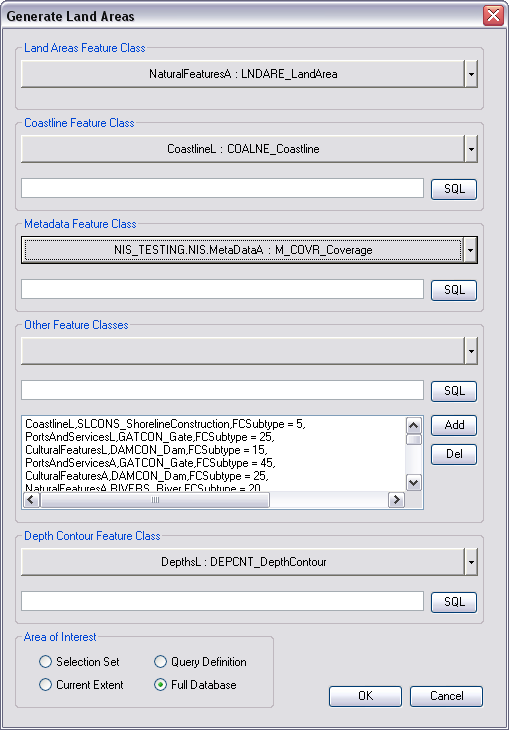
- If necessary, click the Land Area Feature Class drop-down arrow to define a different feature/subtype to hold the output Land Area features.
- Click the Coastline Feature Class drop-down arrow and choose the line feature class you want to use for coastlines, or accept the autopopulated value.
- Optionally build a SQL query under the Coastline Feature Class field to further define your coastline feature.
- Click the Metadata Feature Class drop-down arrow to choose a different area feature to represent the metadata feature, or accept the autopopulated value.
- Optionally build a SQL query under the Metadata Feature Class field to further define your metadata feature.
- Optionally click the Other Feature Classes drop-down arrow to add multiple line and area features that are used during the generate land areas process.
For example, if your coastline feature is split by a building area feature, you could define the building area in the Other Feature Classes list so your land areas would be continuous when generated.
- Click the Depth Contour Feature Class drop-down arrow to define a different depth contour feature, or accept the default feature.
- Optionally build a SQL query under the Depth Contour Feature Class field to further define your depth contour field.
- Choose an option in the Area of Interest area.
- Selected Set—The process is limited to evaluate only the selected linear features when generating land areas.
- Current Extent—The process limits the operation of the tool to those features displayed in the current extent.
- Query Definition—The process only runs on features that meet the query definitions established for each feature class used by the process.
- Full Database—The process runs on all the data present in the geodatabase and generates land areas appropriately.
- Click OK.
A status dialog box appears showing you the generate land areas process.
When the process is complete, a message box appears informing you whether the process was successful or not and asks if you want to review the log file.
- Click Yes or No.