ArcGIS Desktop

  • ArcGIS Pro
  • ArcMap

  • My Profile
  • Справка
  • Sign Out
ArcGIS Desktop

ArcGIS Online

Картографическая платформа вашей организации

ArcGIS Desktop

Полноценная профессиональная ГИС

ArcGIS Enterprise

ГИС предприятия

ArcGIS Developers

Инструменты для встраивания приложений с местоположениями

ArcGIS Solutions

Бесплатные шаблоны карт и приложений для отрасли

ArcGIS Marketplace

Получение приложения и данных для вашей организации.

  • Документация
  • Поддержка
Esri
  • Войти
user
  • Мой профиль
  • Выход

ArcMap

  • На главную
  • Начало работы
  • Карта
  • Анализ
  • Управление данными
  • Инструменты
  • Дополнительные модули

Adding a solution to the product library

Доступно с лицензией Production Mapping.

You can develop your own solutions, or install one or more of the ArcGIS Mapping and Charting solutions, and add them to the product library. This provides you with a way to easily find the product you are working with in the Product Library tree view on the Product Library window. For example, if you install ArcGIS Maritime, you could add ArcGIS Maritime to your product library.

  1. Запустите ArcMap.
  2. Verify that you have specified a database to use as your product library.
  3. If necessary, open the Product Library window by clicking Customize > Production > Product Library on the main menu.

    A tree view of the product library appears.

    Product Library tree view
  4. Expand Product Library and Products.
  5. Right-click Products and click New Solution.

    The New Solution dialog box appears.
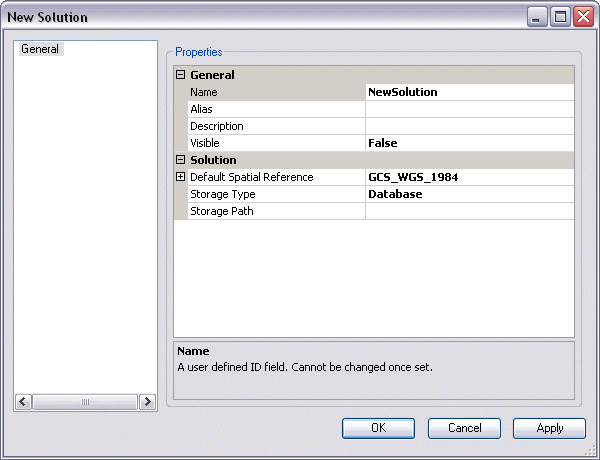
    New Solution dialog box
  6. Click the cell next to Name.
  7. Double-click the existing text and type a name for the solution in the text box.
  8. Click the cell next to Alias.
  9. Type the name you want displayed in the tree view for the solution.
  10. Click the cell next to Description.
  11. Type a description for the new solution in the text box.
  12. Click the cell next to Visible.
  13. Click the drop-down arrow and choose an option to indicate whether the solution is going to be visible in the Product Library tree view.

    The default value is False.

    Подсказка:

    You can proceed to choose a new or existing spatial reference for the solution or a storage type and path for files before closing the dialog box.

  14. Click OK to close the New Solution dialog box.

The solution appears in the Product Library tree view.

Связанные разделы

  • Product library permissions

ArcGIS Desktop

  • На главную
  • Документация
  • Поддержка

ArcGIS

  • ArcGIS Online
  • ArcGIS Desktop
  • ArcGIS Enterprise
  • ArcGIS
  • ArcGIS Developer
  • ArcGIS Solutions
  • ArcGIS Marketplace

Об Esri

  • О нас
  • Карьера
  • Блог Esri
  • Конференция пользователей
  • Саммит разработчиков
Esri
Расскажите нам, что вы думаете.
Copyright © 2021 Esri. | Конфиденциальность | Правовая информация