ArcGIS Desktop

  • ArcGIS Pro
  • ArcMap

  • My Profile
  • Справка
  • Sign Out
ArcGIS Desktop

ArcGIS Online

Картографическая платформа вашей организации

ArcGIS Desktop

Полноценная профессиональная ГИС

ArcGIS Enterprise

ГИС предприятия

ArcGIS Developers

Инструменты для встраивания приложений с местоположениями

ArcGIS Solutions

Бесплатные шаблоны карт и приложений для отрасли

ArcGIS Marketplace

Получение приложения и данных для вашей организации.

  • Документация
  • Поддержка
Esri
  • Войти
user
  • Мой профиль
  • Выход

ArcMap

  • На главную
  • Начало работы
  • Карта
  • Анализ
  • Управление данными
  • Инструменты
  • Дополнительные модули

Copying a part of a feature to the target

Доступно с лицензией Standard или Advanced.

Доступно с лицензией Production Mapping.

Production Mapping provides several functions for working with multipart features.
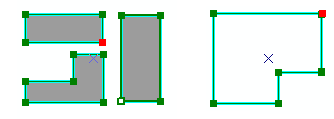
Examples of multipart polygon and polyline features
Examples of Multipart Polygon and Polyline Features

For instance, you can copy geometry from part of the feature as a new feature active template. This creates a new feature in the template's layer that has the geometry of the selected part of the original feature. The original feature and all its parts are not removed.

Parts copied to target templates
Parts of Polygon and Line Features That Have Been Copied to the Current Target Template as Features
  1. Запустите ArcMap.
  2. Загрузите данные на карту, если необходимо.
  3. В главном меню щелкните Настроить, > Панели инструментов, > Production Editing.
  4. Щелкните кнопку Начать редактирование продукта Production Start Editing, расположенную на панели инструментов Редактирование продукта.

    Примечание:

    Окна Управление объектами и Создать атрибуты, Обновить атрибуты или Атрибуты метаданных автоматически открываются когда вы открываете сеанс редактирования, используя инструмент Production Start Editing.

    Подсказка:

    Если окна Создать атрибуты, Обновить атрибуты или Атрибуты метаданных не открываются при начале сеанса редактирования, щелкните кнопку Показать/Скрыть атрибуты Show/Hide Attributes в окне Управление объектами.

  5. Select a multipart feature.
  6. Ensure that the template you want to use to create new features is set as the active template on the Create tab of the Manage Features window.
  7. Click the Edit Vertices button Edit Vertices on the Production Editing toolbar.
  8. Right-click a node on the feature and click Copy Part to Target.

A new feature is created with the geometry of the selected part of the feature and the attributes of the template.

Связанные разделы

  • Converting a part to a feature

ArcGIS Desktop

  • На главную
  • Документация
  • Поддержка

ArcGIS

  • ArcGIS Online
  • ArcGIS Desktop
  • ArcGIS Enterprise
  • ArcGIS
  • ArcGIS Developer
  • ArcGIS Solutions
  • ArcGIS Marketplace

Об Esri

  • О нас
  • Карьера
  • Блог Esri
  • Конференция пользователей
  • Саммит разработчиков
Esri
Расскажите нам, что вы думаете.
Copyright © 2021 Esri. | Конфиденциальность | Правовая информация