ArcGIS Desktop

  • ArcGIS Pro
  • ArcMap

  • My Profile
  • Справка
  • Sign Out
ArcGIS Desktop

ArcGIS Online

Картографическая платформа вашей организации

ArcGIS Desktop

Полноценная профессиональная ГИС

ArcGIS Enterprise

ГИС предприятия

ArcGIS Developers

Инструменты для встраивания приложений с местоположениями

ArcGIS Solutions

Бесплатные шаблоны карт и приложений для отрасли

ArcGIS Marketplace

Получение приложения и данных для вашей организации.

  • Документация
  • Поддержка
Esri
  • Войти
user
  • Мой профиль
  • Выход

ArcMap

  • На главную
  • Начало работы
  • Карта
  • Анализ
  • Управление данными
  • Инструменты
  • Дополнительные модули

Copying specification rules across specifications

Доступно с лицензией Production Mapping.

Rules can be copied within the same specification or a different specification. When rules are copied to the same specification, you can edit the rule's Structured Query Language (SQL) statement or Visual Basic script as well as the representation rule being used. For example, if you want to change the script and associate a different symbol with a similar rule, you can modify the script and change the representation rule symbol.

Примечание:

When rules are copied to the same specification, there is no indication that one of the versions is a copy. The same rule appears twice in the rules table.

  1. Запустите ArcMap.
  2. В главном меню щелкните Настроить, > Панели инструментов, > Production Symbology.

    Откроется панель Production Symbology.

  3. Click the Visual Specifications button Visual Specifications on the Production Symbology toolbar.

    The Visual Specifications dialog box appears.
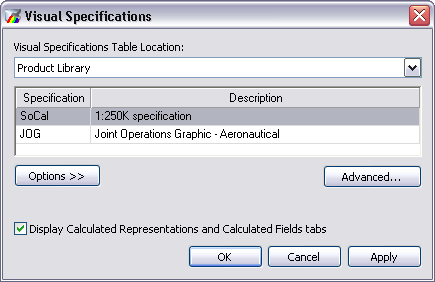
    Visual Specifications dialog box

  4. Click Advanced.

    The Visual Specifications Advanced View dialog box appears, displaying rules saved in the selected specifications.
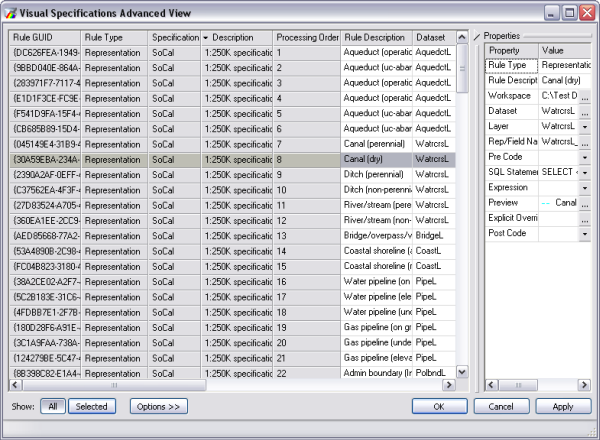
    The Visual Specifications Advanced View dialog box

  5. Select the rules you want to copy in the rules table.
  6. Right-click in the rules table and click Copy.
  7. Right-click in the rules table and click Paste.

    The Paste Rule(s) dialog box appears.

    Paste Rule(s) dialog box
  8. Click the Choose Specification drop-down arrow and choose the specification into which you want to paste the rules.
  9. Click OK.

    The rules appear in the rules table with the specification you selected.

  10. Нажмите ОК.

ArcGIS Desktop

  • На главную
  • Документация
  • Поддержка

ArcGIS

  • ArcGIS Online
  • ArcGIS Desktop
  • ArcGIS Enterprise
  • ArcGIS
  • ArcGIS Developer
  • ArcGIS Solutions
  • ArcGIS Marketplace

Об Esri

  • О нас
  • Карьера
  • Блог Esri
  • Конференция пользователей
  • Саммит разработчиков
Esri
Расскажите нам, что вы думаете.
Copyright © 2021 Esri. | Конфиденциальность | Правовая информация