The Production Trace tool allows you to create new features by tracing existing ones. This functionality can only work with polyline and polygon features. When you trace with the tool, you can toggle between tracing and sketching a feature, using both tools to create a single feature. You also have the option of setting an offset for the feature you trace, which is in map units.
For example, you might want to create roads adjacent to a built-up area. A road can be created by tracing the built-up area polygon using a specified offset.

- Start ArcMap.
- If necessary, load data in the map.
- On the main menu, click Customize > Toolbars > Production Editing.
- Click the Production Start Editing button
 on the Production Editing toolbar.
- Select a line or polygon feature template on the Create tab on the Manage Features window.
This is the feature template that will be used to create the new feature.
- Click the Production Trace Tool button
 on the Production Editing toolbar.
A small circle with a crosshair appears on the map display.
- Click the point where you want to begin tracing the feature and drag the circle along the line feature.
- To set an offset, press the O key.
The Trace Options dialog box appears.
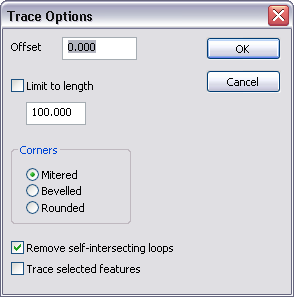
- In the Offset text box, type the number of map units to use as an offset from the original feature.
- Check the Limit to length check box to limit the length of the traced feature.
- Choose an option for corners in the Corners area:
- Mitered—Extends line segments until they intersect
- Bevelled—Adds a line segment to create a bevelled corner
- Rounded—Adds a curved segment at the corner
- Check the Remove self-intersecting loops check box to remove loops that occur during extraction.
- To only trace selected features, check the Trace selected features check box.
- 单击确定。
- When you are finished tracing the feature, double-click to create the end node and finish the sketch.