Before an aviation scale bar has been added to the map layout, the appearance of the scale bar can be modified to ensure it meets a product specification or organizational standard. Several aspects of the scale bar can be customized, which include all the symbols and fonts that create the scale bar. This includes the lines inside and around the scale bar; the number of divisions and subdivisions, as well as the height; and all the text symbols. The properties are divided into different sections, as follows:
- Symbol Settings—Properties related to the line symbol for the scale bar.
- Scale—Properties related to the scale bar's height, subdivisions, and scale value.
- Text Symbol—Properties related to the text symbols for the division text, place-names, subdivision scale, units, scale, and the panel letters. Text symbols can be modified for all the elements on the scale bar, as follows:
- Major Division Text—The number of real-world units represented by each major vision, cumulatively. This appears within each division inside the scale bar.
- Minor Division Text—The number of real-world units represented by each subdivision. This appears on the left side of the scale bar.
- Placename (Left)—The starting place-name for the chart panel. This appears on the left side of the scale bar.
- Placename (Right)—The ending place-name for the chart panel. This appears on the right side of the scale bar.
- Placename (Center)—A single place-name depicted on the chart panel, if only one place-name is to be used. This is centered above the scale bar.
- Sub Division Scale—The real-world distance represented by the subdivisions. This appears below the scale bar, to the left.
- Units Text—The real-world units represented by the scale bar. This appears in the first major division on the scale bar.
- Scale Text—The number of real-world units represented by one major division in the scale bar. This appears in the last major division of the scale bar.
- Letter (Left)—The starting panel letter. This appears on the left side of the scale bar.
- Letter (Right)—The ending panel letter. This appears on the right side of the scale bar.
- General Settings—A property that you can use to revert the scale bar to installed default values.
As changes are made to the different parts of the symbol, you can preview them on the Aviation Scale Bar dialog box. This provides a way for you to see how the scale bar is going to look on the chart layout once all of the changes are implemented.
When you modify the line symbol or a text element on the scale bar, there is a separate dialog box that appears so you can customize the color, size, and other aspects of the symbol's style. There are also preview windows in these dialog boxes so you can preview each change before you preview it on the scale bar itself.
- 启动 ArcMap。
-
在主菜单上,单击自定义 > 生产 > 生产属性。
将弹出生产属性对话框。
- Click Aviation Properties in the list on the left side of the Production Properties dialog box.
-
In the Element Options section, click the cell next to Aviation Scale Bar, and click the ellipsis button (...) that appears.
The Aviation Scale Bar dialog box appears.
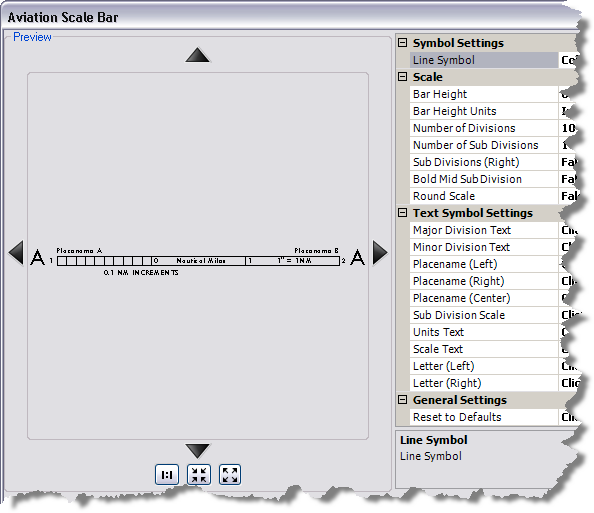
- To modify the line symbol, click the cell next to Line Symbol, click the ellipsis button (...) that appears, and change the color, width, or units for the line.
The updated line symbol appears in the Aviation Scale Bar dialog box.
- To adjust the height of the scale bar, do the following:
- Click the cell next to Bar Height and type a new value for the height of the scale bar.
This is the height of the scale bar on the chart layout. The default is 0.1.
- Click the cell next to Bar Height Units, click the drop-down arrow, and choose the page units to determine the height of the scale bar.
The units are used to determine the actual height of the scale bar on the chart layout. The default value is Inches.
- Click the cell next to Bar Height and type a new value for the height of the scale bar.
- To change the number of divisions on the scale bar, click the cell next to Number of Divisions and type a number.
This is the number of divisions that appear in the scale bar to illustrate relative distances in the chart. The default value is 10.
- To change the number of subdivisions on the scale bar, click the cell next to Number of Sub Divisions and type a number.
This is the number of subdivisions that appear on the left side of the scale bar. The default value is 10.
- To have subdivisions appear on both ends of the scale bar, click the cell next to Sub Divisions (Right), click the drop-down arrow, and choose True.
When this parameter is set to True, the same number of subdivisions appear on both the left and right sides of the scale bar. The default value is False.
- To show the line in the middle of the subdivisions as boldface, click the cell next to Bold Mid Sub Division, click the drop-down arrow, and choose True.
When this parameter is set to True, the line in the middle of the subdivisions becomes bold, so it is easier to see the midpoint of the subdivisions. The default value is False.
- To round the scale to the nearest whole integer, click the cell next to Round Scale, click the drop-down arrow, and choose True.
When this parameter is set to True, the scale is rounded to the nearest whole integer. For example, if the scale is 6.75, it is rounded up to 7. When this parameter is set to False, the scale is rounded to the nearest quarter-integer. For example, a scale of 3.21 would be rounded to 3.25.
- To modify the text symbols, do the following:
- Click the cell next to the symbol name and click the ellipsis (...) that appears.
The Editor dialog box appears.
- Modify the symbol properties as needed.
Properties that can be modified include the font, size, style, offset, angle, alignment, position, and masking.
- Click OK.
The Aviation Scale Bar dialog box appears.
- Click the cell next to the symbol name and click the ellipsis (...) that appears.
- To revert the aviation scale bar to its default values, click the cell next to Reset to Defaults and click the browse button.
The Reset Settings message appears.
- Click Yes to reset the settings.
All the symbol settings for the aviation scale bar return to the default values. Any symbol changes that have been made are undone.
- Click OK to save the settings you have modified.
These settings are applied to the new aviation scale bar elements you create in the future, unless the settings are modified again.
The Production Properties dialog box appears.
- 单击确定。