Once you have created at least one BIS geodatabase, you can link bathymetry data to the BIS geodatabase and associate metadata to the bathymetry data. ArcGIS for Maritime: Bathymetry allows you to retire existing metadata fields from your extended or collection metadata schema so that they are no longer used in the Manage Collections and Add Bathymetry dialog boxes and the Explore Bathymetry and Compose Surface windows. Metadata fields are never deleted from your metadata schema and can be restored at any time at your discretion. Upon retiring a particular field, values populated within that field for a given collection, dataset or datasets, are not removed. Upon restoring a field, these values will once again become available to view, filter, and sort.
The following steps provide an example of how to retire a metadata field in the Manage Collections dialog box, but you can follow these steps to retire any extended or collection metadata field.
If you use multiple BIS geodatabases that require custom metadata, you will need to make changes to the metadata files for each of those BIS geodatabases individually.
In the event that you need to make any major configuration changes to either your collection or extended metadata schema, it is recommended that you make a backup copy so you can revert to your prior configuration if necessary. The location of your current metadata schema can be found in the Paths pane.
- Start ArcMap.
- On the main menu, click Customize > Toolbars > Bathymetry.
-
Click the Manage BIS Settings button
 on the Bathymetry toolbar.
The Manage BIS Settings dialog box appears. The settings for your active BIS geodatabase are shown in the dialog box.
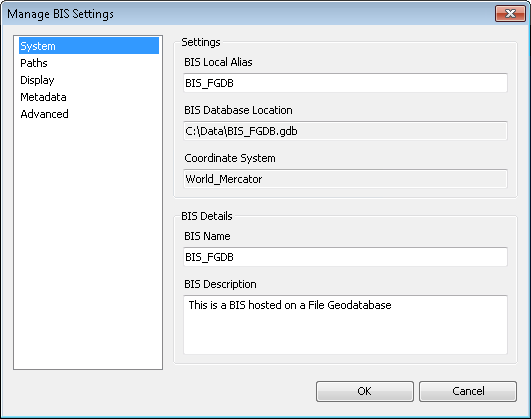
- Click the Metadata pane.
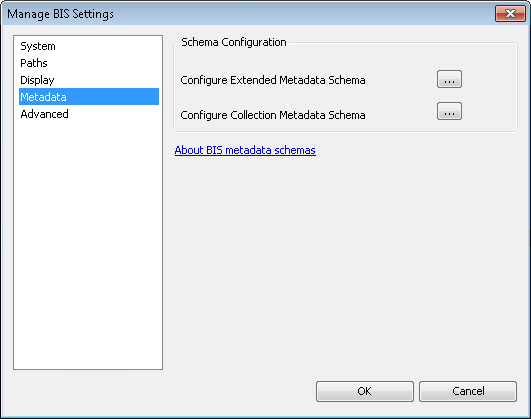
- Click the ellipsis button (…) next to the appropriate option to configure the schema for either the extended or collection metadata.
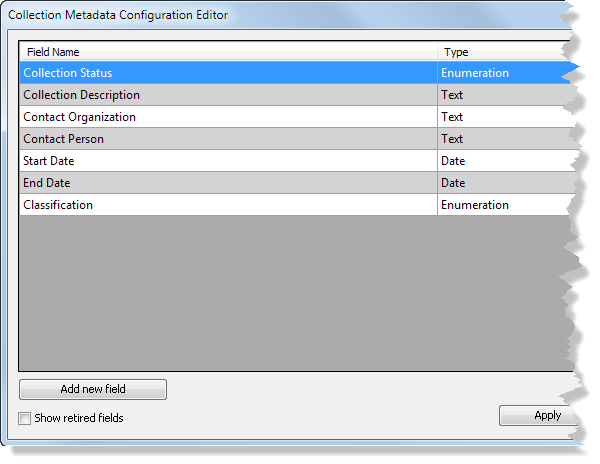
The appropriate metadata configuration editor dialog box appears.
-
Right-click the field you want to retire and click Retire.
If your field was previously marked as searchable, in addition to no longer appearing in the Manage Collections and Add Bathymetry dialog boxes, it will now also no longer appear in the Explore Bathymetry or Compose Surface windows.
- You have the following options:
To update your schema, but continue working in the Metadata Configuration Editor dialog box
Click Apply.
To update your schema and close the Metadata Configuration Editor dialog box
Click OK.
To discard the changes you made
Click Cancel.
- Click OK to save and close the metadata configuration editor.
Although the metadata configuration editor updates immediately, for the schema change to be reflected in other dialog boxes and windows where this field is visible, such as the Manage Collections and Add Bathymetry dialog boxes and the Explore Bathymetry and Compose Surface windows, you need to close and restart ArcMap to see the applied changes.
- Close ArcMap.
- Start ArcMap.
-
Click the Manage Collections button
 on the Bathymetry toolbar.
The Manage Collections dialog box appears.
In this example, the collection metadata is edited.
The field display will no longer show the field you retired.