获得 Aviation Airports 许可后可用。
Obstruction identification surfaces (OISs) are imaginary surfaces that surround airfields and identify the obstruction areas for the airfields. Geoprocessing tools that are part of ArcGIS Aviation can generate the OISs, which can then be analyzed using the OIS Obstruction Analysis tool. This allows you to generate the OISs and intersect them with obstruction data to determine how far the obstructions intersect an OIS.
The features are stored in an OISObstructions feature class in the output workspace and contain the z-values for the obstructions, as well as the negative and positive delta values for each feature. The values in the Z field represent the z-value at the obstruction surface level. The Delta_Z field value has the difference between the OIS and the top of the obstruction. The following describes how the points are generated:
- For rasters—A point is generated only for points where the data penetrates the OIS surfaces. The x- and y-values on the points are the same as the lidar point that penetrates the OIS surface. The z-value is calculated based on the OIS.
- For points—A point is generated for each obstacle feature that falls within the area covered by the OIS surfaces. The x- and y-values on the points are the same as the obstacle point feature with which the output point is associated. The z-value is calculated based on the OIS. If a height field is specified for the obstruction points, the z-value is the sum of the field value and the OIS z-value.
The output OISObstructions feature class provides information on which surface is intersected by an obstacle. This information is reported in the OISDataset field on the OISObstructions feature class. If the OIS components are in a multipatch feature class, the field contains the feature class name and ObjectID of the surface the obstruction intersects. If the OIS components are in a TIN, the field contains the name of the TIN.
- 启动 ArcMap。
- On the main menu, click Customize > Toolbars > Aviation Airports.
-
Click the OIS Obstruction Analysis button
 on the Aviation Airports toolbar.
The OIS Obstruction Analysis dialog box appears.
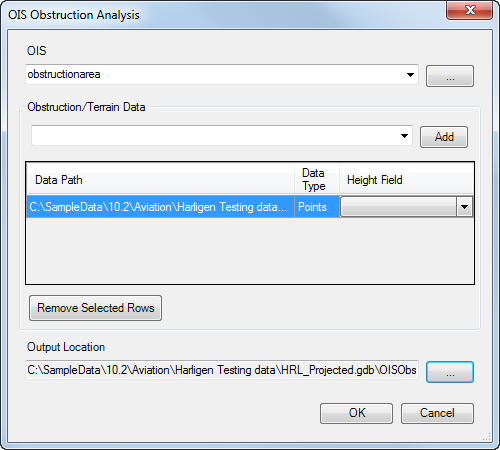
- Click the ellipsis (...) button next to the OIS drop-down arrow.
The Browse for Obstruction Identification Surface dataset dialog box appears.
- Browse to the multipatch or TIN dataset that contains the OIS data to analyze.
- Click Save.
The OIS Obstruction Analysis dialog box appears.
- Click Add next to the Obstruction/Terrain Data text box.
The Browse for Obstacle data dialog box appears.
- Click the Show Of Type drop-down arrow and browse to the LAS dataset or point feature class.
- Click Select.
The OIS Obstruction Analysis dialog box appears. The path to the LAS dataset or point feature class appears in the table below the Obstruction/Terrain Data parameter.
- Optionally click the Height Field drop-down arrow and choose the field that contains the height values for the features.
These are the elevation values that will be added to the geometry's elevation and written to the output feature class.
- To add more obstacle features for the analysis, repeat steps 7 through 10 as needed.
- Click the ellipsis (...) button next to the Output Location parameter to browse to the output workspace.
- Browse to the geodatabase that's going to store the analysis results.
- Click Select.
The Output Location parameter populates with the path to the geodatabase. The name of the obstructions feature class is automatically set to OISObstructions.
- 单击确定。
A progress window appears while the analysis is ongoing. The OIS Obstruction Analysis message appears when the analysis completes. The message indicates how many points have been written to the obstructions feature class and the number of obstruction features that have been processed.
- 单击确定。
The OISObstructions feature class is added to the Table Of Contents window, and the features display on the map.