在 Standard 或 Advanced 许可等级下可用。
获得 Production Mapping 许可后可用。
The feature builder has several properties that can be customized on the Feature Builder Settings dialog box including the precision of coordinates, the function library to use, and the spatial reference extent. The Geometry category contains parameters related to the geometries that are created with the feature builder. This includes the density of points in the feature and the distance between vertices when points are being geodensified.
- 启动 ArcMap。
- On the menu bar, click Customize > Toolbars > Production Feature Builder.
- Click the Feature Builder button
 on the Production Feature Builder toolbar.
The Feature Builder window appears.
- Click the Settings button
 at the top of the Feature Builder window.
The Feature Builder Settings dialog box appears.
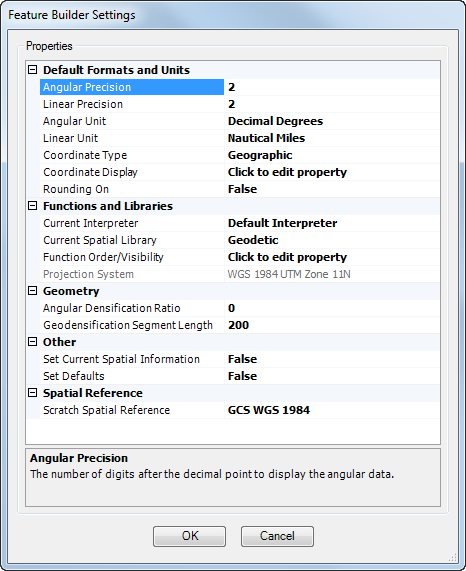
- Click the cell next to Angular Densification Ratio.
This ratio is used to densify a geometry created mathematically. This is used whenever you need to densify a parametric geometry (one that is constructed using a mathematical formula). The smaller the ratio, the greater the precision with which you can represent a complex geometry as a densified shape. (The smaller the ratio, the greater the number of points generated.)
- Type the value that represents the angular densification ratio you want to use.
- Click the cell next to Geodensification Segment Length.
This is the distance between vertices when geodensifying geodesics (geodesic arcs and great circle arcs).
- Type the distance you want to have between vertices when geodensifying geodesics.
- 单击确定。