You can edit the default size of the generated symbol and stretch it to the length needed for that specification chart by using the representation editing tools. The geometric effect controls the shape of the outer polygons and the size of the fill dots with regard to their angles. This addresses issues seen using font glyphs, such as fill dots becoming exponentially larger or line weight increasing when stretching to the desired size.
Applying the Glideslope geometric effect representation rule to the localizer feature adds a global effect to the representation. It changes the point feature representation to a polygon feature representation that allows you to edit multiple symbol properties.
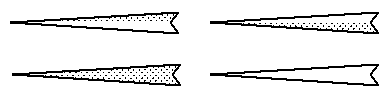
There are four default localizer feather symbols included with ArcGIS Aviation Charting in the PLTS_ICAO style as representation rules: fill on the top half, fill on the bottom half, fill in the whole feather, and no fill.
- 启动 ArcMap。
- Load the NavaidSystem_C layer, ensuring that you have a localizer feature as part of the feature class.
- Select the NavaidSystem_C localizer feature.
- Right-click the NavaidSystem_C layer in the Table of Contents window and click Properties.
The Layer Properties dialog box appears.
- Click the Symbology tab on the Layer Properties dialog box.
- Click the Representations entry in the Show pane.
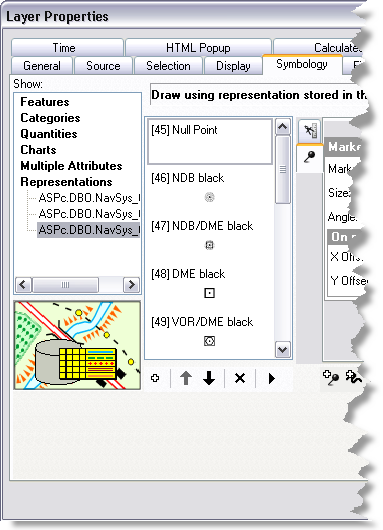
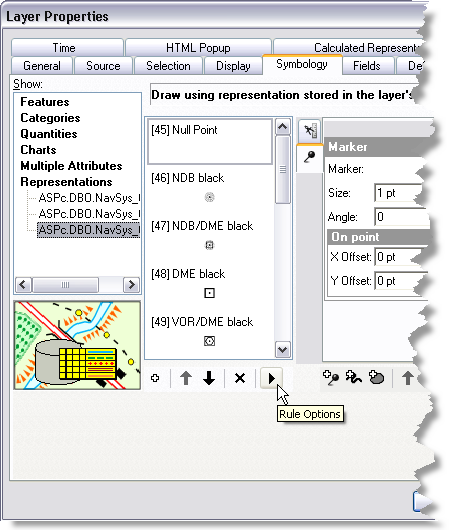
- Click the Rule Options button located at the bottom of the existing representation rules.
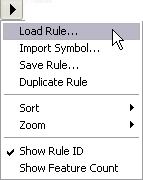
- Click Load Rule.
The Representation Rule Selector dialog box appears.
- Choose one of the four localizer feather options from the list of representation rules:
- Localizer Bottom Half
- Localizer Top Half
- Localizer Complete
- Localizer Empty
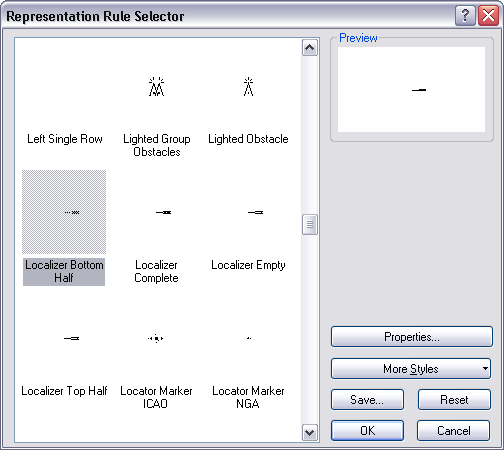
- Click OK on the Representation Rule Selector dialog box.
The chosen representation rule is added to the list of available representation rules on the Layer Properties dialog box.
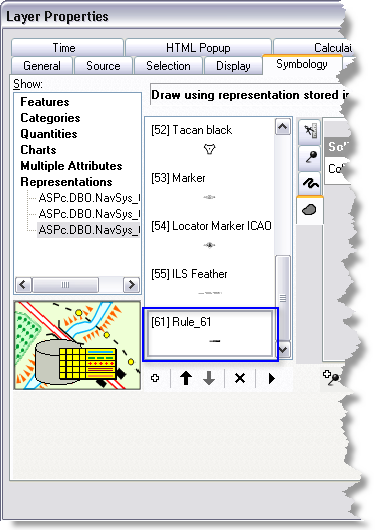
- Click the newly added rule and type the name of the rule, for example, Localizer Bottom.
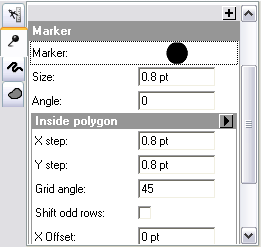
- Click the Marker Symbol tab and change the
properties listed for the marker symbol.
In this representation rule, the marker symbol is the dot that makes up the dotted fill symbol for the localizer feather.
- Click the Feather Return Type drop-down arrow to select a different fill type if necessary.
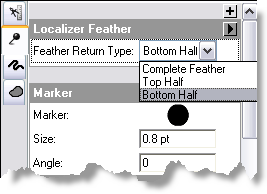
- Click OK to apply the Glideslope geometric effect to the localizer feature once you have configured the symbol to your specification.
- Click OK on the warning message.
The localizer feather is created.
- On the main menu, click Customize > Toolbars > Aviation Editing.
- Click the Production Start Editing button
 on the Aviation Editing toolbar.
- Right-click the selected localizer feature and click Attributes.
- Click the representation symbology tab.
- Click the Representation rule drop-down arrow and choose the representation rule you added in the previous steps.
- Click the Save Edits button
 on the Aviation Editing toolbar.
 - Click the Stop Editing button
 on the Aviation Editing toolbar.