The MSA Element tool creates a Minimum Safe Altitude (MSA) element in the chart layout view. The MSA indicates the minimum safe altitude that provides a 1,000-foot obstacle clearance at a specific distance from the Navaid, airport, waypoint, or other significant point, at the center of the MSA element.
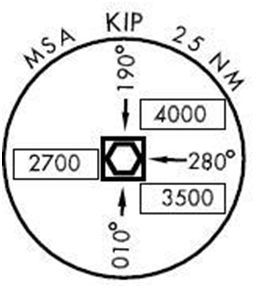
The MSA Element tool draws the MSA values directly from the production database, allowing the generation of a customizable element. The individual components of the MSA element (inbound bearings, navaid, and associated text) are stored in the MSA and MSAGROUP feature classes in the production database.
- 启动 ArcMap。
- Ensure that the correct product library and production database are set.
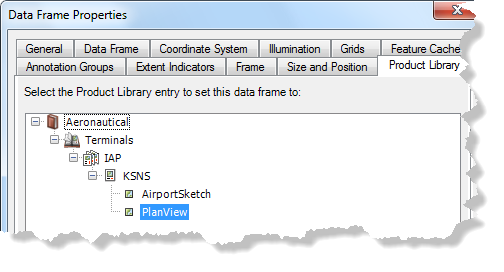
- Ensure that your chart's data frame is set to the appropriate
instance by right-clicking the data frame, selecting Properties,
and clicking the Product Library tab.
- 单击确定。
- Ensure that there is a definition query that identifies the
procedure on which the MSA is needed on the TERMINALPROCEDURE table.
- Add the TERMINALPROCEDURE table to the Table Of Contents window if it is not already present.
- If there is not already a record in the TERMINALPROCEDURE table for
the procedure, create a new record.
The definition query should resemble the following query (with only the GFID differing from the example):
GFID = '{24B739EE-A16E-49BA-A309-FC5AE6B939C1}'
- On the main menu, click View > Layout View.
- On the main menu, click Customize > Toolbars > Aviation Terminal Procedure.
- Click the MSA Element button
 .
.An MSA element is created.
- Select the MSA and move it to the appropriate location on the chart.