The Resize Annotation tool can increase or decrease the size of annotation by specific points. The tool takes into account the scale of the map that the annotation is in when resizing, so the resize value specified is the amount by which the annotation will appear to be resized on the page. The actual change in the font sizes of the annotation varies depending on the scale of the map and the reference scale of the annotation feature class.
The tool can resize annotation from multiple feature classes at the same time. It can resize annotation with formatting tags as well as annotation without formatting tags. The tool requires a MapID field as well as an AnnoSizeChange field on the annotation feature class whose features are being resized. The change in size from the default size (as specified in the label expression for the annotation class) is stored in the AnnoSizeChange field.
This tool is enabled in ArcMap when you are in an edit session and annotation features are selected.
- 启动 ArcMap。
- On the main menu, click Customize > Toolbars > Aviation Editing.
- Click the Production Start Editing button
 on the Aviation Editing toolbar.
- Ensure that there is at least one annotation feature layer in the active data frame with a valid data source.
- On the main menu, click Customize > Toolbars > Aviation Annotation.
- Click the Edit Annotation tool
 on the Aviation Annotation toolbar.
 - Click an annotation feature to select it.
- Click the Resize Annotation button
 on the Aviation Annotation toolbar.
The Resize Annotation dialog box appears.
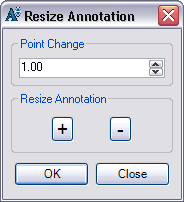
- In the Point Change box, click to select a point size.
- Click the + button to increase the point size.
- Click the - button to decrease the point size.
- 单击确定。
- Click the Save Edits button
 .
.