The Update Annotation tool will update all annotation within the selected annotation feature classes for the specified instance based on the information stored in the source feature class. The Update Annotation tool also ensures the accent bar gap and arrowhead of the annotation are the correct size for the map scale of the instance and corrects any problems with the geometry of the text element. A non-feature-linked annotation's text is not re-created; however, the size is updated to appear correct for the map scale of the instance. The Update Annotation tool reports variable problems with annotation features, such as missing text elements, text element/annotation feature shape mismatch problems, and any other errors that occur while updating the annotation.
- 启动 ArcMap。
- Ensure that the production properties are set correctly.
Properties include the product library workspace, production database workspace, Data Model Version, and Instances Maintained. The Data Model Version must be set to an AIS-based data model.
- Make sure that you are not in an edit session and annotation feature layers are loaded in the map document.
- On the main menu, click Customize > Toolbars > Aviation Annotation.
- Click the Update Annotation button
 on the Aviation Annotation toolbar.
The Update Annotation dialog box appears.
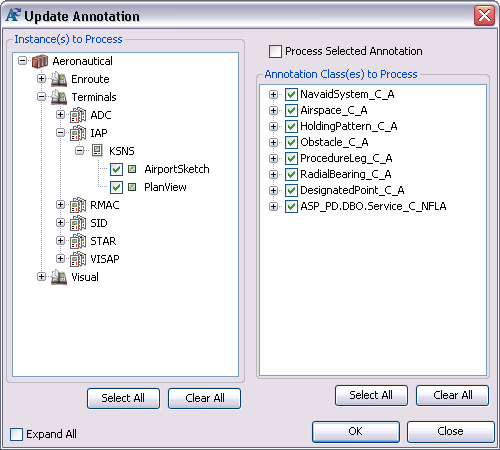
- Check the check boxes next to the instances you want to process.
The list displayed is built from the Instances Maintained set through the Product Library window.
- Check the check boxes next to the annotation classes in the Annotation Class(es) to Process list.
- Click Apply.
The tool updates annotation features to ensure that the annotation reflects the text string in the label field. It also updates the accent bar gap sizes, arrowhead sizes, and font sizes for the chart on which the annotation appears. You can view the log file to see the processing details.
If there were any annotation feature layers whose geometry problems could not be fixed, a message appears asking you if you want to delete them.
- Click Yes to delete the layers with geometry problems or No if you do not want to delete them.
- Click Close when finished.