ArcGIS Desktop

  • ArcGIS Pro
  • ArcMap

  • My Profile
  • 帮助
  • Sign Out
ArcGIS Desktop

ArcGIS Online

专为贵组织打造的制图平台

ArcGIS Desktop

全面的专业性 GIS

ArcGIS Enterprise

面向企业的 GIS

ArcGIS Developers

用于构建位置感知应用程序的工具

ArcGIS Solutions

适用于行业的免费模板地图和应用程序

ArcGIS Marketplace

获取适用于组织的应用程序和数据

  • 文档
  • 支持
Esri
  • 登录
user
  • 我的个人资料
  • 登出

ArcMap

  • 主页
  • 入门
  • 地图
  • 分析
  • 管理数据
  • 工具
  • 扩展模块

Refreshing the Split View window

Changes in the layer properties do not update in the Split View window. For example, if you change the symbology color, the ArcMap Table Of Contents window and data frame update, but the table of contents and data frame in the Split View window do not. You can apply these changes to layers in the Split View window with the Refresh Table of Contents tool.
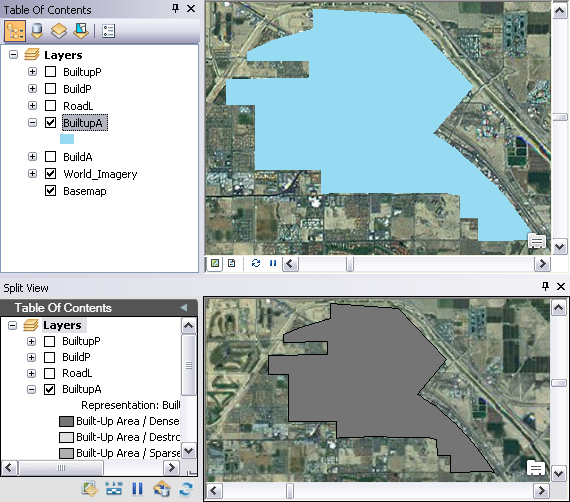
Example of changes not updating in the Split View window
  1. 启动 ArcMap。
  2. On the main menu, click Customize > Toolbars > Defense Mapping.
  3. Click the Split View button Split View on the Defense Mapping toolbar.

    The Split View window appears and contains all the layers in the Table Of Contents window.

    ArcMap and Split View windows
    提示:

    You can dock the window anywhere inside of ArcMap or move it to another monitor based on your setup needs.

  4. Click the Refresh Table Of Contents button Refresh Table Of Contents on the Split View window.

    The Split View window refreshes to show the changes in the layer properties.

    Example of changes updating in the Split View window

ArcGIS Desktop

  • 主页
  • 文档
  • 支持

ArcGIS

  • ArcGIS Online
  • ArcGIS Desktop
  • ArcGIS Enterprise
  • ArcGIS
  • ArcGIS Developer
  • ArcGIS Solutions
  • ArcGIS Marketplace

关于 Esri

  • 关于我们
  • 招贤纳士
  • Esri 博客
  • 用户大会
  • 开发者峰会
Esri
分享您的想法。
Copyright © 2021 Esri. | 隐私政策 | 法律声明