An SQL expression can be defined to query features across a database or across multiple databases if you are not in an edit session. The results of the query are displayed in the Advanced SQL Calculator Results window.
SQL expressions are built according to a standard syntax. For more information, see Building a query expression.
- 启动 ArcMap。
- 如有必要,可在地图中加载数据。
- On the main menu, click Customize > Toolbars > Production Editing.
- Add the Advanced SQL Calculator tool by doing the following:
- Click Customize > Customize Mode on the main menu.
The Customize dialog box appears.
- Click the Commands tab.
- In the Categories list, click Production Editing.
- Click and drag the Advanced SQL Calculator button
 to a toolbar.
 - Click Close.
- Click Customize > Customize Mode on the main menu.
- Click the Advanced SQL Calculator button .
The Advanced SQL Calculator dialog box appears.
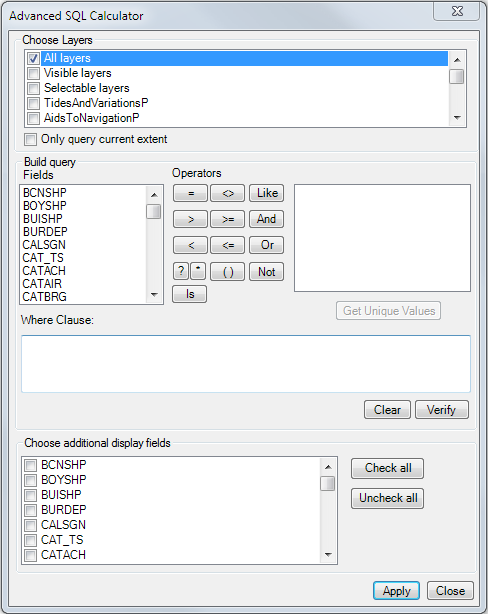
- From the Choose Layers list, choose the list of layers for which you want to run the query.
- If you only want to include features in the current extent, check the Only query current extent check box.
- In the Fields list, choose the field you want to use in the query.
- Click Get Unique Values if you want to display a list of values that exist in the database.
The unique values for the field appear.
- Construct an SQL query expression.
For more information, see Building a query expression.
- Click Verify to validate your query syntax.
- If you want to display any additional fields in the feature classes, check the check boxes next to their names in the Choose additional display fields list.
- 单击应用。
The query results appear in the Advanced SQL Calculator Results window.