获得 Production Mapping 许可后可用。
The Production Dissolve tool allows you to merge adjacent and overlapping polygon, line, and multipoint feature classes of the same type that share a set of specified attribute values into one continuous feature. The Dissolve and Ignore Dissolve settings are defined using the Field Configuration dialog box, which manages the field configuration settings. The dissolve field you indicate is the field on which the merge process is based; multiple dissolve fields can be specified. The feature class subtype is the default dissolve field if none is indicated on the Field Configuration or Edit Shared Fields dialog box. When an attribute field is set as the dissolve field, the adjacent and overlapping features of the same feature class with the same values on that field are merged into one.
Learn more about spatial requirements for dissolving features
For fields that ignore dissolve, you can determine how the fields are going to be populated on the merged feature. Choose your desired option from the Ignore Dissolve options in the Field Configuration dialog box. The options are described in the following table:
| Dissolve option | Description |
|---|---|
Null | The field is populated with a null value. |
Database Default | The field is populated with the specified default value for that field. If a default value is not defined, the field is populated with Null. |
First In | The field value is selected from the available values at random. It is the default Ignore Dissolve setting. |
Concatenate/Sum | For string fields, text entries are concatenated, truncating at the field's length restriction. For Integer or Double field types, all values are summed. This option is disabled if the field type is one of the following:
|
- 启动 ArcMap。
- 如有必要,可在地图中加载数据。
- 在主菜单上,单击自定义 > 工具条 > 生产编辑。
- 在主菜单上,单击自定义 > 工具条 > 高级生产编辑。
- If necessary, open the Product Library window by clicking Customize > Production > Product Library on the main menu.
A tree view of the product library appears.

- Define the product library workspace.
- Ensure the following have been completed:
- A data model has been created.
- A data model version has been created using the schema for which you want to set up dissolve fields.
- Dissolve settings have been configured on the Field Configuration or Edit Shared Fields dialog box.
- Right-click the data model version you want to use to dissolve features and click Manage Field Configurations.
The Field Configuration dialog box appears.
- Click Tables to Edit.
The Choose Data Model Version Tables to Edit dialog box appears with a list of feature classes and tables in the data model.
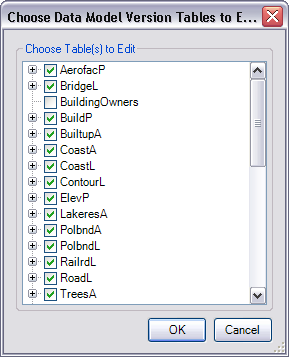
- Check the check boxes next to the feature classes to use with the Production Dissolve tool in the Choose Table(s) to Edit list.
- Click OK.
The Field Configuration dialog box appears with the selected feature classes in the Current Fields Configuration list.
- Ensure that the subtypes whose features you want to dissolve have been marked as Include Subtype (Dissolve).
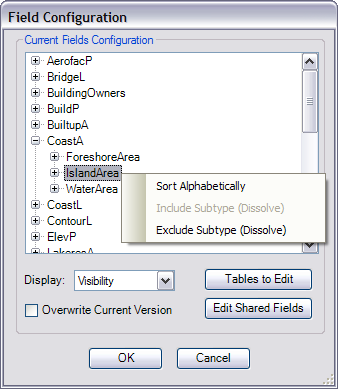
If a field has been marked as a dissolve field, the option is unavailable in the context menu.
- 单击生产编辑工具条上的启动生产编辑按钮
 。
。
- If necessary, select the features you want to merge or the feature or graphic you want to use as the point of reference for merging.
- Click the Production Dissolve button
 on the Production Editing Advanced toolbar.
The Auto Select Features dialog box appears. The options available in the dialog box vary based on the map selection, if any. Unavailable options appear with the reason for unavailability in parentheses.

- Choose an option.
- All features—All features in the map are merged.
- Selected features—Selected features are merged.
- Intersecting current extent—Features that partially overlap the current extent are merged.
- Intersecting selected polygon feature—Features that partially overlap the selected polygon feature are merged.
- Intersecting selected polygon graphic—Features that partially overlap the selected polygon graphic are merged.
- Within current extent—Features completely contained in the current map extent are merged.
- Within selected polygon feature—Features completely contained in the selected polygon are merged.
- Within selected polygon graphic—Features completely contained in a polygon graphic that has been drawn on the map are merged.
- Click OK.
Features are merged based on the Dissolve setting in the field configurations, and attribute values are changed based on the Ignore Dissolve settings.
Once the merge is complete, the Production Dissolve message appears.
- If you want to review the log file, click Yes, or click No to close the message.