The Manage BIS Settings tool allows you to customize the process of adding bathymetry datasets to you BIS geodatabase. By not automatically maintaining a seamless surface model of your entire list of datasets, you can greatly reduce the amount of time it takes to add new datasets to your BIS geodatabase.
- 启动 ArcMap。
- Click Customize > Toolbars > Bathymetry on the main menu to activate the Bathymetry toolbar if necessary.
-
Click the Manage BIS Settings button
 on the Bathymetry toolbar.
The Manage BIS Settings dialog box appears. The settings for your active BIS geodatabases are shown in the dialog box.
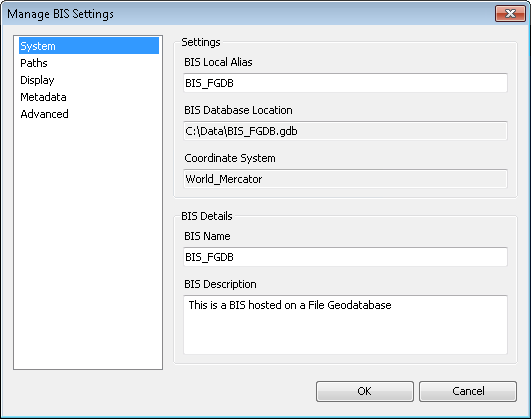
- Click the Advanced pane.
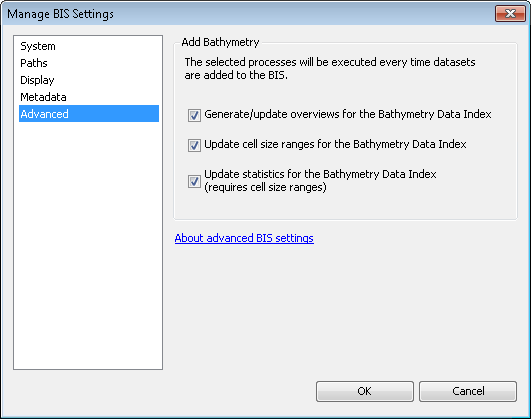
- Uncheck the check boxes for the steps you want to skip when adding bathymetry datasets to your BIS geodatabase. By default, all check boxes are checked and none of the steps are skipped.
- Generate/update overviews for the Bathymetry Data Index—Ensures that small-scale display of your Bathymetry Data Index reflects newly added rasters and speeds up the map display when viewing your Bathymetry Data Index. If you skip this step, newly added datasets will not appear at small scales, and you may notice increased load times when viewing the Bathymetry Data Index.
- Update cell size ranges for the Bathymetry Data Index—Updates the scale ranges that define when newly added datasets will be visible in the Bathymetry Data Index. If you skip this step, newly added datasets will not be displayed and statistic will not be updated in your Bathymetry Data Index.
- Update statistics for the Bathymetry Data Index—Recalculates the minimum, maximum, mean, and standard deviation of the Bathymetry Data Index on the newly added datasets. The statistics are used to symbolize the depth range for the Bathymetry Data Index. If you skip this step, the Bathymetry Data Index statistics will not be updated, and the stretched color ramp used to render the Bathymetry Data Index may not be correct.
- 单击确定。
Your updated BIS geodatabase settings are saved. The steps you unchecked will be skipped when adding bathymetry datasets to the BIS geodatabase.