Mit der Data Reviewer-Lizenz verfügbar.
Batch jobs can be consolidated by inserting them into a new or existing batch job. This allows you to run several batch jobs at once, rather than individually. For instance, if you have several batch jobs for a dataset, but want to do a final check before delivering some data, you can create a single batch job with all of them and run it against the data.
- Start ArcMap.
- On the main menu, click Customize > Toolbars > Data Reviewer.
- Click the Reviewer Batch Job Manager button
 on the Data Reviewer toolbar.
The Reviewer Batch Job Manager dialog box appears.
- Click Open.
The Select Batch Job File dialog box appears.
- Navigate to the Reviewer batch job you want to open, then click Open.
The Reviewer Batch Job Manager dialog box appears with the contents of the batch job.
- Click Insert.
The Insert dialog box appears.
- Navigate to the Reviewer batch job you want to insert.
- Click Insert.
The job appears on the Reviewer Batch Job Manager dialog box.
- Click Save As to save your changes.
- Type a name for the batch job in the File name text box.
The file name will have an asterisk after the .rbj extension denoting the file has not been saved.
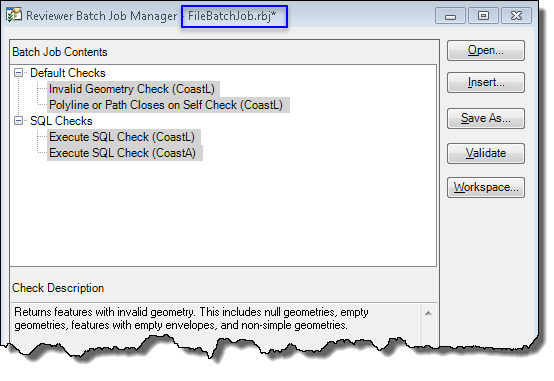
- Click Save.
The Reviewer Batch Job Manager dialog box appears.
- Klicken Sie auf OK.