Docking settings can be customized by adding toolbars or windows to them. Once these items are added to the docking setting, they will be added to the ArcMap window when you load it.
For instance, you can add the Topology toolbar to the Editing docking setting if your data contains topology that needs to be edited along with other data. This ensures that the Topology toolbar is displayed in ArcMap when you load the Editing docking setting.
Any docking setting can have a toolbar or window added to it, even those that are included with the software.
- On the main menu, click Customize > Production Mapping > Toolbar Settings > Docking Manager.
The Docking Manager dialog box appears.

- Choose a docking setting in the Docking Settings list.
The objects included in the docking setting appear in the Toolbars and Windows list.
- Click the Add Dockable Object button
 .
.
The Select Toolbars & Windows dialog box appears.
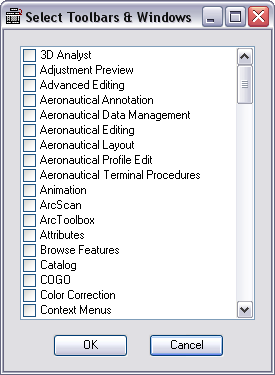
- Check the check box next to the object you want to add to the framework command.
- Repeat step 4 as necessary.
- Click OK.
The Docking Manager dialog box appears. The object or objects you have added are listed in the Toolbars and Windows list.
- Use the buttons in the Toolbars and Windows area and the docking options to change the position of the toolbar.
The following can be used to change the position of the toolbar:

Add To Toolbar Group. Indents a toolbar beneath another so it can appear in the same line. This tool cannot be used with dockable windows. Instead, you must have the item listed immediately after the dockable window with the Dock Right option.

Remove From Toolbar Group. Left aligns a toolbar so it appears on its own line or can be used as the start of a new line.

Move Up In The Docking Sequence. Moves the selected item up in the list so it is displayed before other items in the framework command.

Move Down In The Docking Sequence. Moves the selected item down in the list so it is displayed after other items in the framework command.
For example, if you want the Tools toolbar to appear on the same line as the Versioning toolbar, you would click the Move Up In The Docking Sequence button
once, then the Add To Toolbar Group button . - Click OK.